Question/Topic: How to print library overdue notices?
This feature is included in the Library solutions starting with version 2.1 (release date: March, 2009). You can upgrade your library solution: Library Upgrade.
Open Manage Loans
-
On the File menu, click Load Database. Select and load Library database.
- Open Manage Loans windows:
a. On the Loans/Returns menu, click Set Due Date Period/Limits
or
b. Click on the Loan tab. Click with right mouse button on the Loan field to display pop-up menu. Select Manage Loans command.
How to print library overdue notices?
-
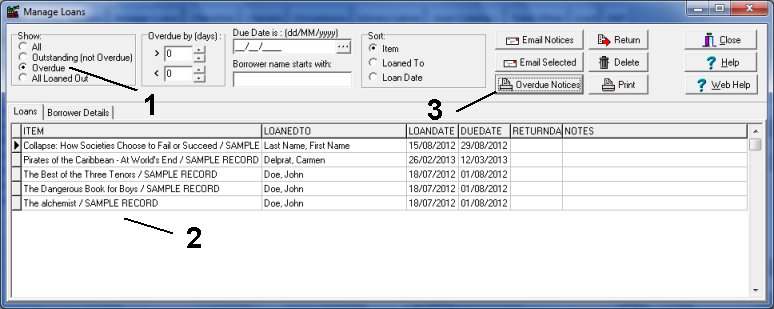
Click Overdue (1) to display overdue items.
-
Overdue items are displayed in the table (2).
-
Click Overdue Notices (3) button.
-
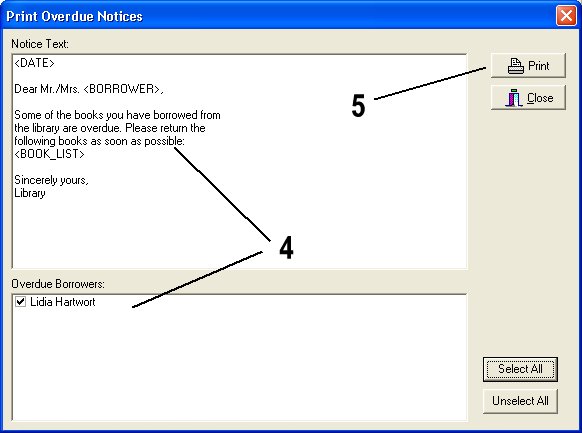
Verify the notice text and the borrower list in the Print Overdue Notices (4) window.
-
Click Print (5) to preview/print notices.
Notice template file (notice.txt).
-
The template file is stored in the C:\YOUR_INSTALLATION_FOLDER\DATA\notice.txt
-
If you want to change the format of this file you can edit it with any text editor (Windows Notepad). (example add your library name, library contact phone, library hours of operation,# )
-
You are allowed to use 3 keywords in your notices. <BORROWER> keyword will be replaced with the borrower name. <BOOK_LIST> keyword will be replaced with the overdue items. <DATE> keyword will be replaced with the current day value