
Handy Library Manager
Quick start, how to topics > Import library items from Excel or Text file.
You can import records from a text file where fields are delimited/separated by special characters (tab, comma, or another character). This topic explains how to import data from an excel table.
Importing from an excel table:
- Add a new row at the top of your table and enter field names that are used in Handy Library Manger. The row with field names will simplify the importing procedure. You will not have to define the import mapping.
- Save your excel table as a text tab delimited file (using tab as a delimiter is safe option, you don't have tab characters in the table content).
- In Handy Library Manager open Add Library Items window.
- Start import from text file procedure.
- Select the text tab delimited file (created in 2.)
- Select import options.
- Start import.
- Verify new items.
- Move new items to the library main catalog.
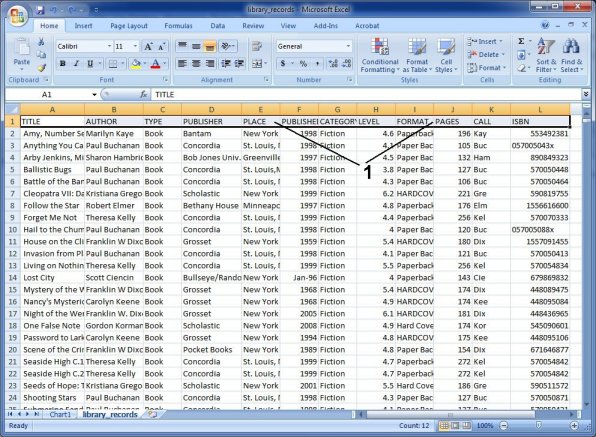
- On the top of your excel table add one row and enter data field names that are used by Handy Library Manager.
- In this case the following names were entered into the corresponding columns: TITLE, AUTHOR, TYPE, PUBLISHER, PLACE, PUBLISHED, CATEGORY, LEVEL, FORMAT, PAGES, CALL, ISBN
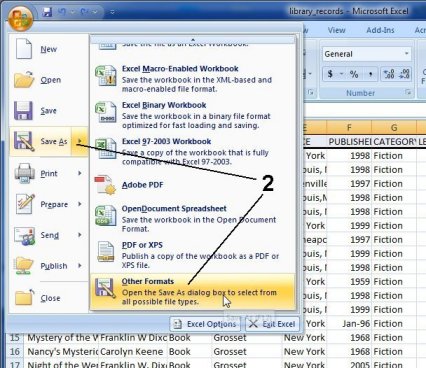
- Save your excel table as a text tab delimited file.
- Click Save As, select Other Formats.
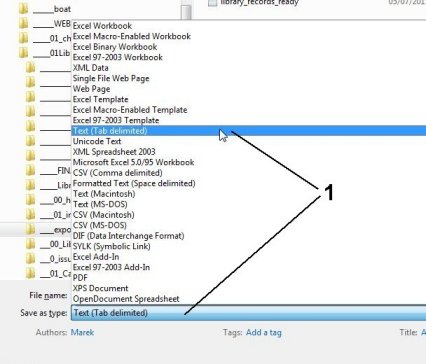
- In the Save As type box select Text (Tab delimited). Your file will be saved as a text file and data will be delimited by tab character.
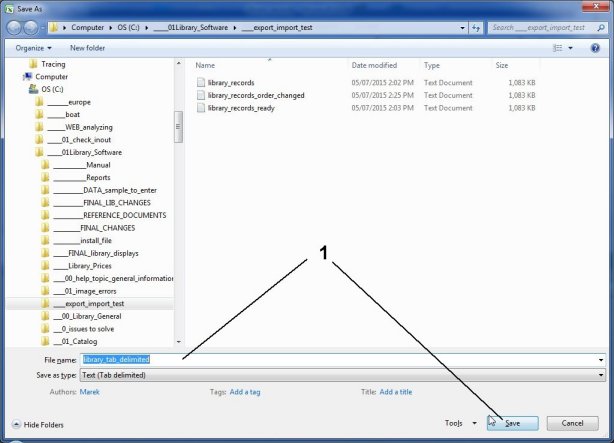
- Enter your name into the File Name box. Click Save.
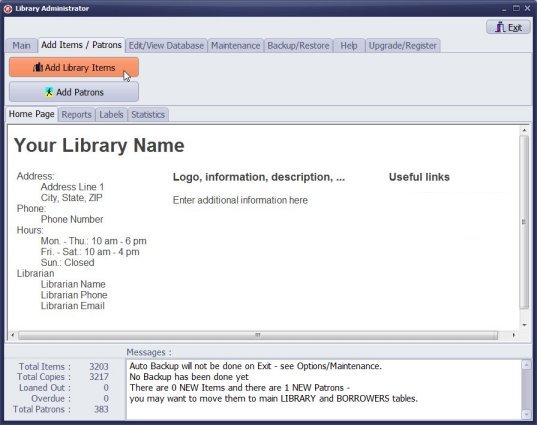
- Start Handy Library Manager, on the Add Items/Patron tab click Add Library Items.
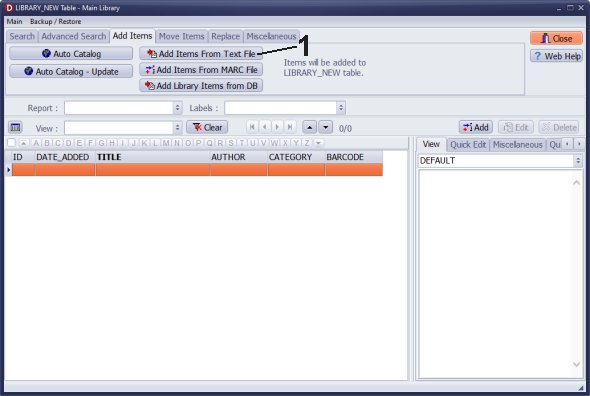
- On the Add Items tab click Add Items From Text File.
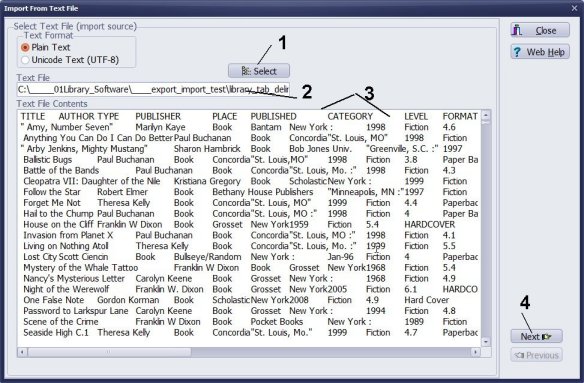
- Click Select.
- Select the text file that you created in Excel.
- Content of the selected file is displayed in the Text File Contents box.
- Click Next.
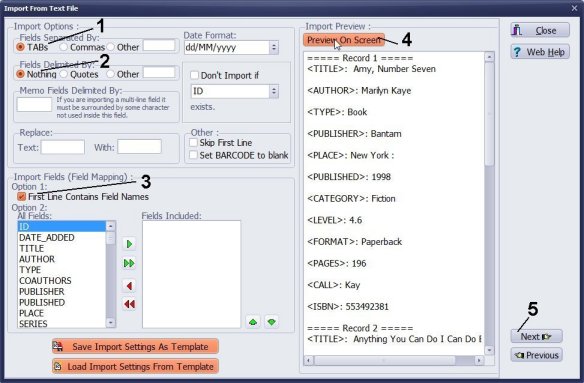
- Under Fields Separated By select TABs.
- Under Fields Delimited By select Nothing.
- In the Import Fields section check First Line Contains Field Names.
- Click Preview On Screen, verify 3 imported records.
- Click Next.
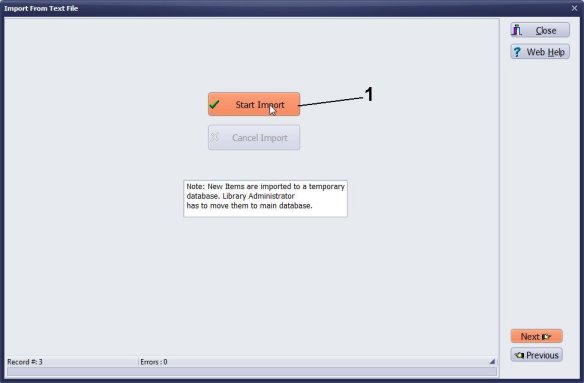
- Click Start Import.
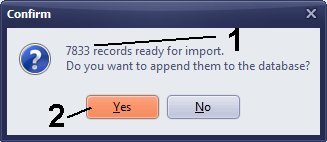
- Verify the number of records.
- Click Yes to continue.
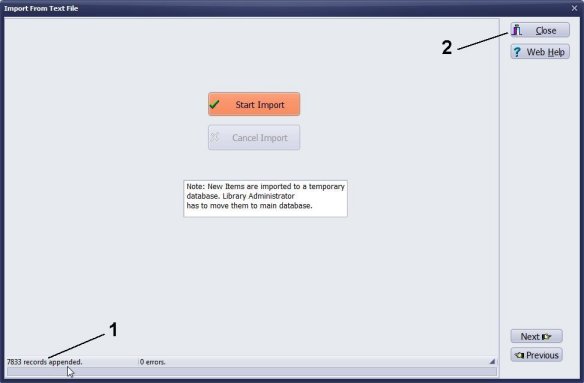
- Verify if the number of imported records is correct.
- Click Close.
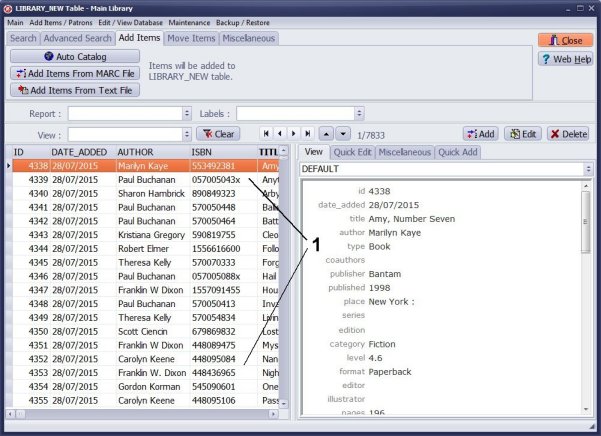
- New items are added into the LIBRARY_NEW table.
- Verify your items, add missing data.
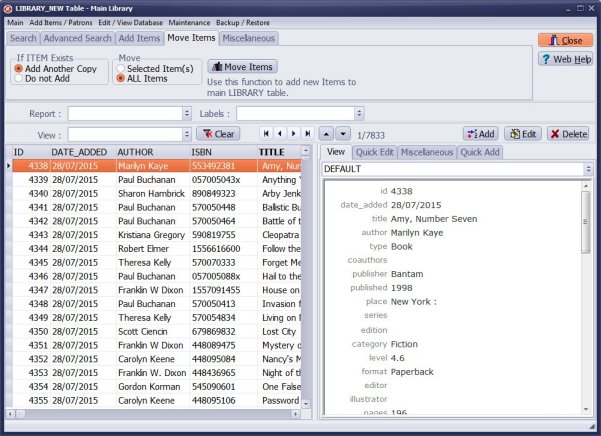
When your items are ready for circulations move them to your LIBRARY main catalog.
If you want the program to generate unique barcode numbers for you, do not enter barcode values into the barcode field.
Data field names used in the Library_New table:
IDDATE_ADDED
TITLE
AUTHOR
TYPE
COAUTHORS
PUBLISHER
PUBLISHED
PLACE
SERIES
CATEGORY
LEVEL
FORMAT
EDITOR
ILLUSTRATOR
PAGES
PHYSICAL
DEWEY
LCCN
ISBN
ISSN
UPC_EAN
SUBJECT1
SUBJECT2
SUBJECT3
SUBJECTS
NOTES
SUMMARY
IMAGE
CUSTOM1
CUSTOM2
CUSTOM3
CUSTOM4
CUSTOM5
CUSTOM6
CUSTOM7
CUSTOM8
CUSTOM9
SUBJECT2
SUBJECT3
SUBJECTS
NOTES
SUMMARY
IMAGE
CUSTOM1
CUSTOM2
CUSTOM3
CUSTOM4
CUSTOM5
CUSTOM6
CUSTOM7
CUSTOM8
CUSTOM9
BARCODE
CALL
VOLUME
LOAN_TYPE
COPY_NOTES
LOCATION
CONDITION
PURCHASED
PRICE
REPLACE_COST
EVALUATED
VALUE
ACQUISITION
ACQUISITIONNO
DONATEDBY
INMEMORYOF
DONATED
PRINT
CALL
VOLUME
LOAN_TYPE
COPY_NOTES
LOCATION
CONDITION
PURCHASED
PRICE
REPLACE_COST
EVALUATED
VALUE
ACQUISITION
ACQUISITIONNO
DONATEDBY
INMEMORYOF
DONATED
(copy related data fields, will be stored in the item's copy section)