Question/Topic: Equipment/Tools Tracking database solution, how to define due date?
Open Manage Loans
-
On the File menu, click Load Database. Select and load Equipment/Tools database.
- Open Manage Loans windows:
a: Click on the CheckInOut tab. Click with right mouse button on the Loan field to display pop-up menu. Select Manage Loans command.
b: On the Search menu, click Manage Loans
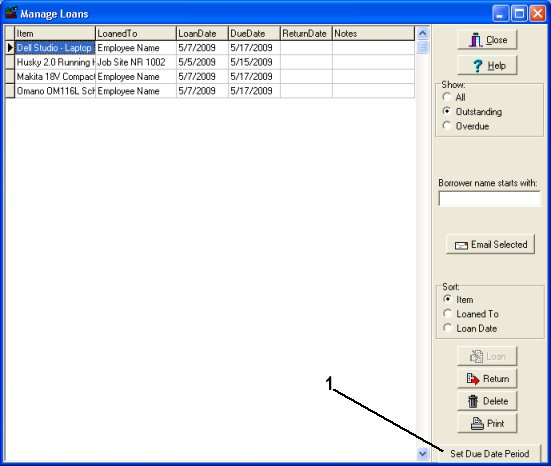
- In the Manage Loans window (screen snapshot below) click Set Due Date Period (1).
How to define equipment/tools categorized due date period?
How to define/modify default due date period?
-
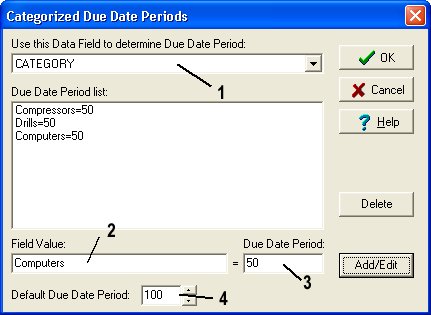
Select the field in the Use this Data Field to determine Due Date Period (1) box. For example you can select tool/equipment CATEGORY data field. This field has values like: Drills, Compressors, Computers, .....
-
Enter the value of the field into Field Value (2) edit box (for example: Drills), enter the number of days the item can be loaned in the Due Date Period (3) edit box. Click Add/Edit button to add the setting to the Due Date Period list.
-
Repeat this procedure for other tool categories that do not use Default Due Date Period.
-
Note: Default Due Date Period (4), this value will be used if you do not define categorized due date periods.