Question/Topic:
How to restore database files?
Step 1
-
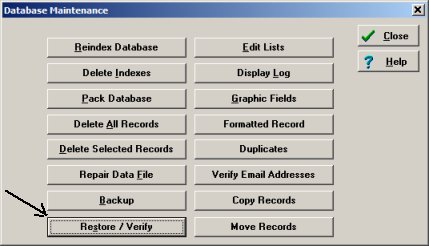
On the Advanced menu click Maintenance.
-
In the Maintenance window click Restore/Verify.
click Restore/Verify in the Maintenance window:
Step 2
-
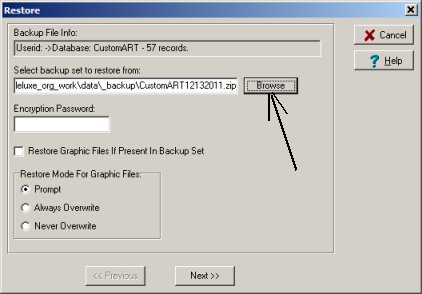
Restore window has a preselected file from the last backup.
- To restore database from the last backup click Next.
- To change the selection click Browse.
click Browse to change the backup file selection:
Step 3
-
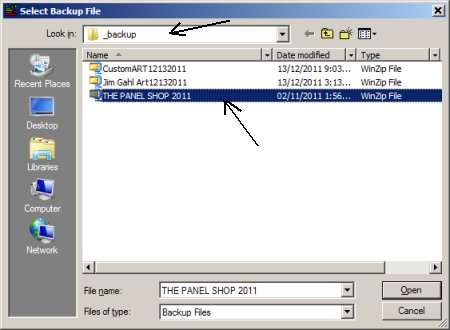
In the Select Backup File window select the folder with backup files.
-
Click on the file name to select it.
-
Click Open.
select folder with your backup files:

Step 4
-
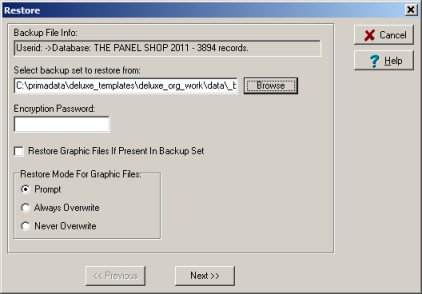
Verify the information in the Backup File Info box.
-
Click Next to continue.
verify backup file information and click Next
Step 5
-
Select Restore to Original Database: it will restore to Original Database
(regardless of the currently opened database), if Original Database was deleted
this function will recreate the database.
-
Select Restore to New Database: it will create a new database with the structure, content,
and layout of the original database.
select Restore Mode and click Start Restore

Step 6
-
Restore to New Database recreates the database with the following name: "data_file_name.db
- MM/DD/YY"
-
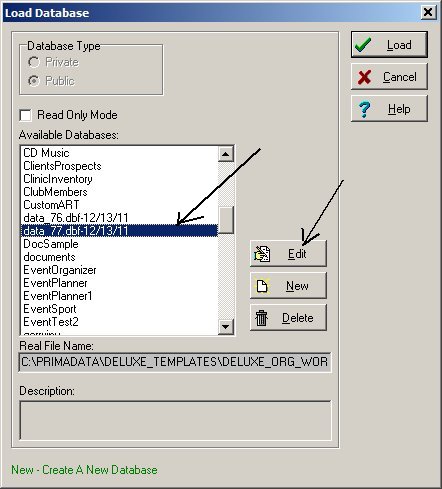
On the File menu click Load Database. In the Load Database
window select the database and click Edit to change the name.
click Edit to change the database name
|