How to print member/patron id cards?
Description is based on the School Library Organizer Pro solution (Library Patrons database).
Printing cards or other specialized labels is supported by all our Organizers. Print Label Wizard is included in all Organizer Deluxe and Organizer Pro database solutions.
How to print library member id cards? (sample):
-
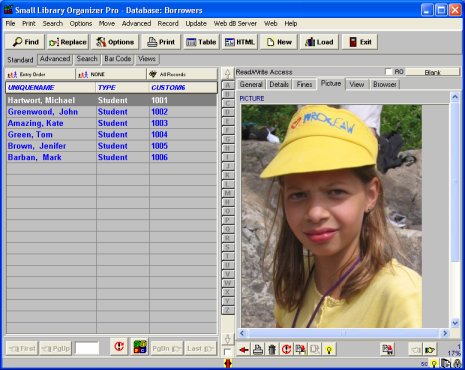
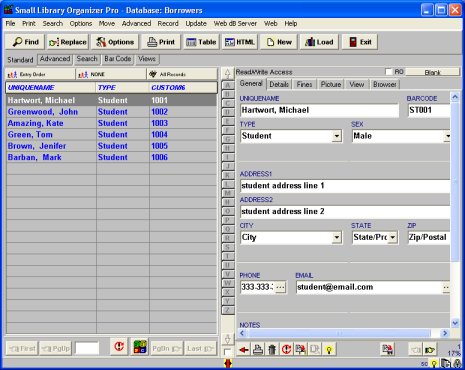
Enter library members data into Patrons database.
Patron database:
-
On the Print menu click All Records/Print Labels.
-
In the Maintenance window click Backup.
-
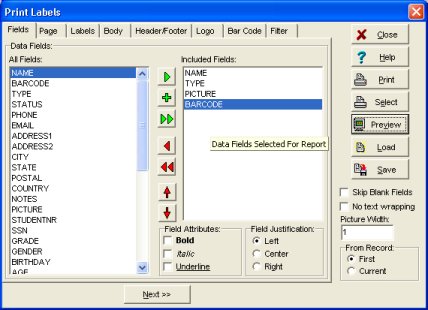
On the Fields page select data fields that you want to include on the label. To select the field: highlight a field on the left-side list (All Field box) and click on the Green Arrow button. In our sample the following data fields are selected:
NAME
TYPE
PICTURE
BARCODE
Print Label Wizard/Fields:
-
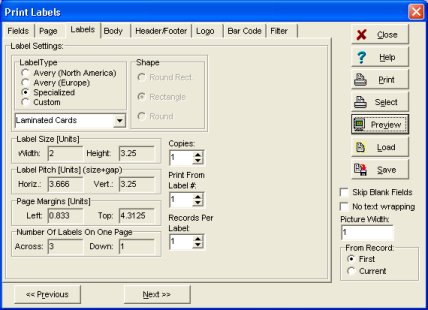
To select a label format click Labels tab. In the Label Type section click on the Specialized. Click on the dropdown box and select "Laminated Cards, AV 5361".
-
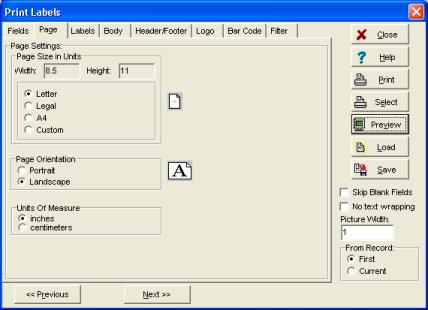
To select a page orientation (record printing orientation) click Page tab. In the Page Orientation section click on the Landscape.
-
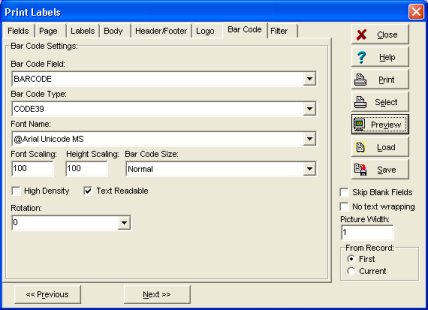
To define barcode parameters click Bar Code tab. Select BARCODE in the Barcode Field box. Select CODE39 in the Bar Code Type box.
-
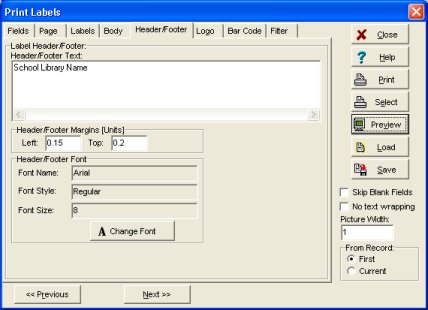
To include school name on the id card click Header/Footer tab. Enter your Library Name in the Header/Footer box.
-
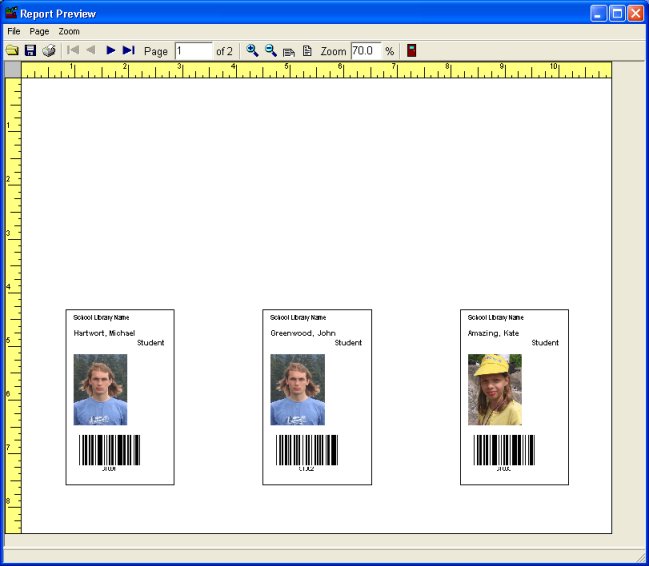
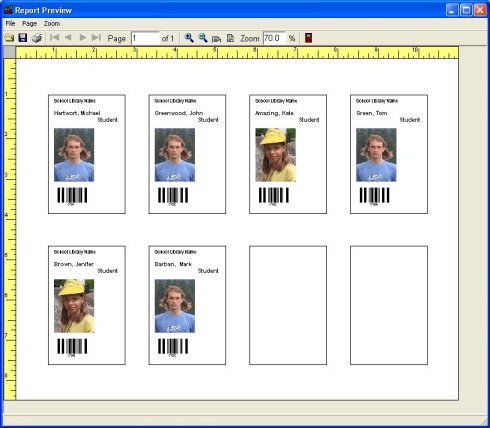
After the label library patron cards report has been created you may want to test it by clicking on the Preview button. If you are not satisfied with the report adjust the report options and Preview it again.
Identification cards, preview report (Laminated Cards AV 5361 label type selected).
-
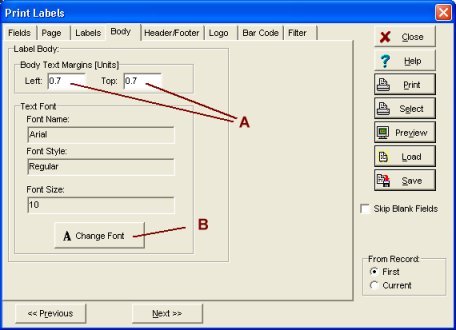
Usually when you define your labels you will want to change the text font size and type and the position of the text on the label. On the Label Body page select the font type and size and/or starting position (Left margin and Top margin). Click Change Font button to select font type, font style, and font size.
-
If you think you may want to use this label setup (database field selection, label layout, label type selection,..) in the future save the label Report as a Label Template by clicking on the Save button. Later you can reuse the saved Label Report by clicking on the Load button.
-
When you are satisfied with the label report you can print it on the Windows current printer by clicking on the Print button.
Preview window for different label type.
Identification cards, preview report (Name Badge AV 5895 label type selected).
|
|