
Question/Topic: Stockroom, Warehouse software solution, how to start?
Step 1:
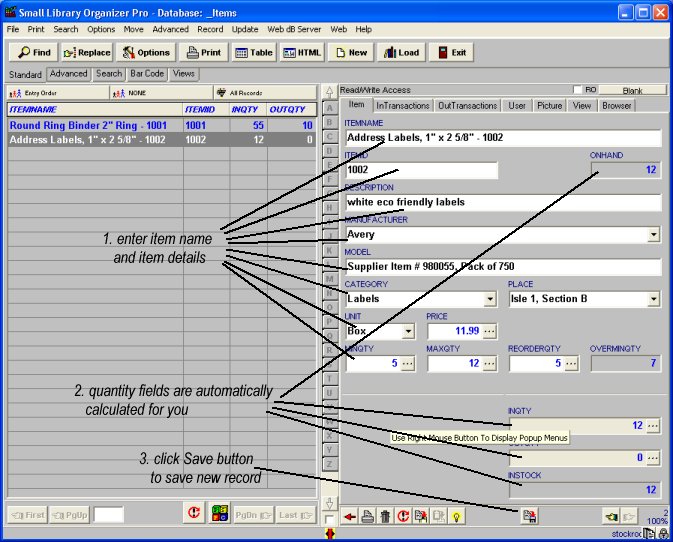
Enter your stockroom/warehouse items into ITEMS database.
Requirements:
(step 1) Enter your stockroom/warehouse/inventory items:
Step 2:
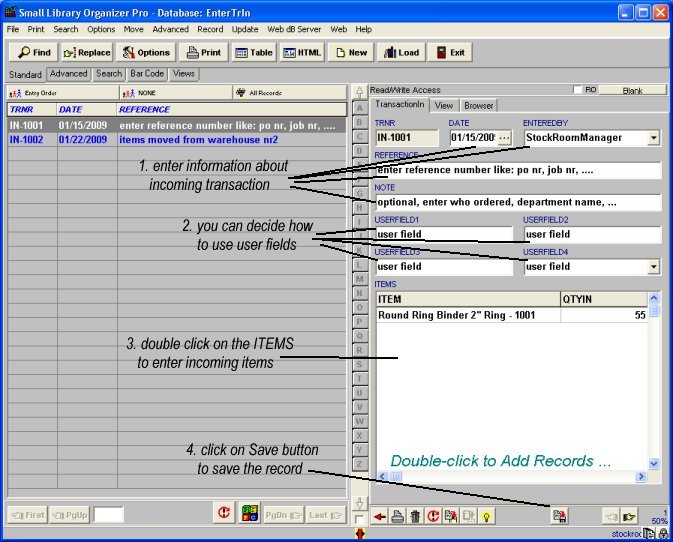
Enter incoming items (transactions-in) into ENTER TRANSACTIONs IN database.
(step 2) Enter incoming transactions (general transaction information and then incoming items)
Step 3:
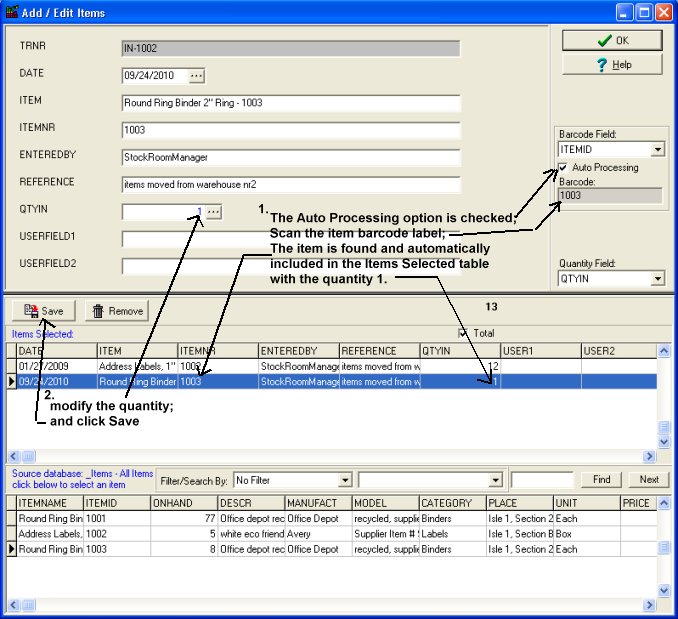
Enter incoming items: How to process incoming transactions
(step 3) Incoming items transaction window (barcode processing):
Step 4:
Enter outgoing items (transactions-out) into ENTER TRANSACTIONs OUT database.

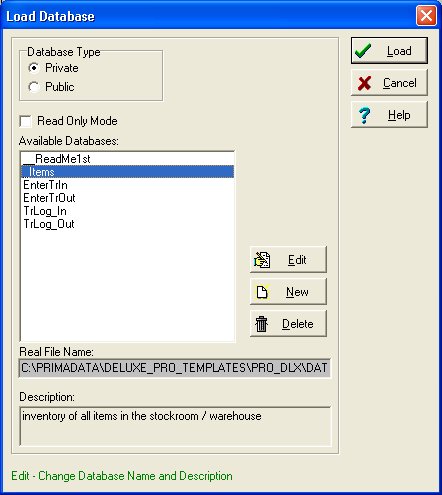
Stockroom solution databases in the system:
Inventory (Items): enter your inventory items
EnterTrIn: enter incoming transactions
EnterTrOut: enter outgoing transactions
TrLogIn: automatically records incoming items
TrLogOut: automatically records outgoing items:
Related software (Read/Download) :
Stockroom Organizer Pro
Stockroom Organizer Deluxe
Related Topics ...
How to backup database files?
How to print warehouse/stockroom below minimum report?
Warehouse, stockroom: How to process incoming transactions?
Related software (Read/Download) :
Stockroom Organizer Pro
Stockroom Organizer Deluxe
Check In/Out Organizer Pro
Simple Library Organizer Pro