
Organizer Advantage is powerful yet easy to use database manager for Windows.
Advantage Designer lets you modify our solutions or easily create new databases.
Take control of your data with our simple or buinsess database software solutions.
| Organizer Advantage HowTo/Help | Designer HowTo/Help |
Advantage Help > Search, Replace > Search, Replace
- Organizer Advantage
- Getting Started Videos
- Main Window
- Tabbed Toolbars
- Add Data
- No Limits
- Reports
- Labels
- Search, Replace
- Quick Search
- Search
- Advanced Search
> Search, Replace
- How To .. - HTML Reports
- HTML Wizard
- Import, Export
- Free Data Setup
- Backup, Restore
- Options
- Statistics, Views
- Solutions
- Templates
- Add-Ons
- Install, Network
- Web Search, Add Data
- Premium
- Upgrade, Update
- Organizer Deluxe, Pro Users
- More
Search and Replace: Update Field Values Across Your Entire Database
The Replace toolbar lets you make bulk changes to any field in your database in seconds - a task that could take hours if done manually. Choose from multiple replace modes including full field replacement, substring substitution, auto-numbering, text insert, barcode creation, and case conversion. Always use Advanced Search first to target the right set of records, and consider creating a backup before you begin, as replace operations cannot be undone.
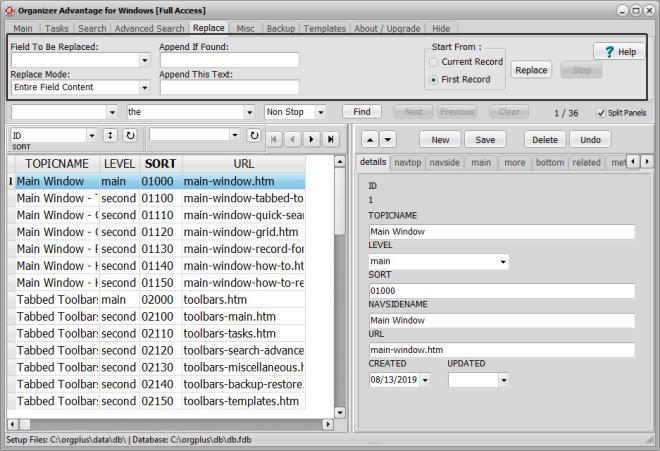
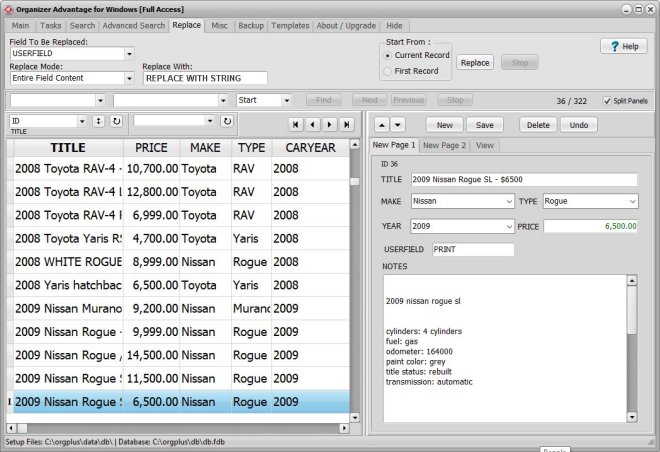
Entire Field Content
Replace Entire Field Contents: select this mode if you would like to replace the entire content of the selected field with the Replace With string. For example, you entered temporary data into USERFIELD data field. Now you want to clean the contents of this field. Use replace with empty string.
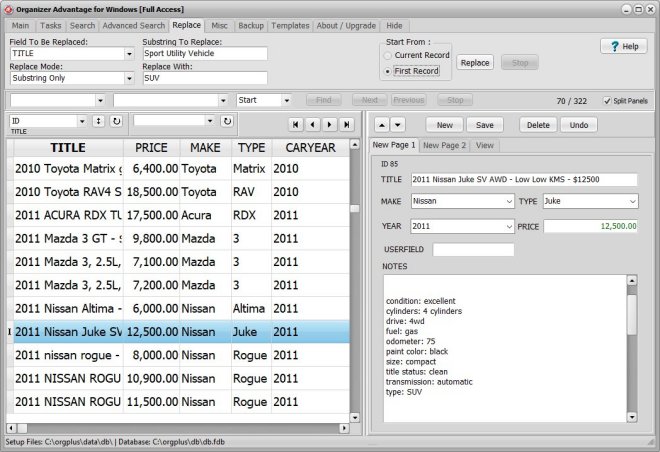
Substring Only
Substring Only: select this mode if you would like to replace a part of the selected field. It will search for the text specified in the Substring To Replace edit box. Each found text will be replaced with a new value.
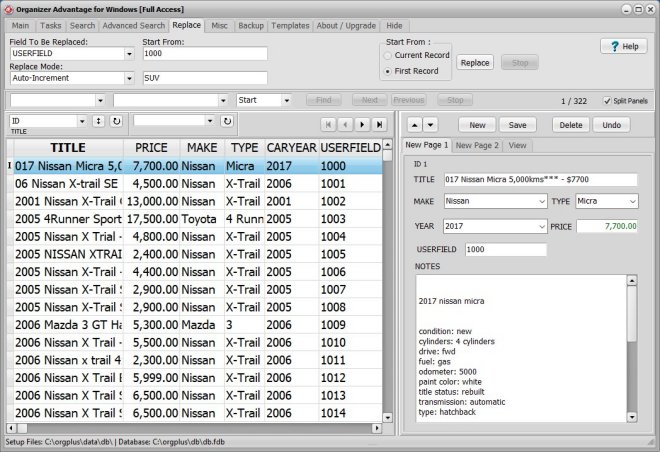
Auto-Increment, Auto-Decrement
Auto-Increment: select this mode if you would like to number your records. Enter the initial value in the Start From edit box. The number that will replace the content of the selected field is incremented by one and starts from the value entered in the Start From edit box.
Insert In Front, Append To End
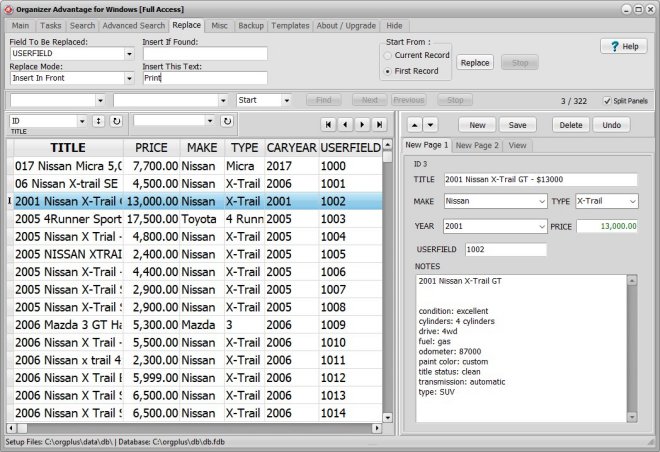
Insert In Front: select this mode if you would like to insert the text in front of the selected field content. Insert If Found option: only records with Insert If Found text will be modified. If Insert If Found edit box is empty, all currently displayed records will be modified.
Remove File Path
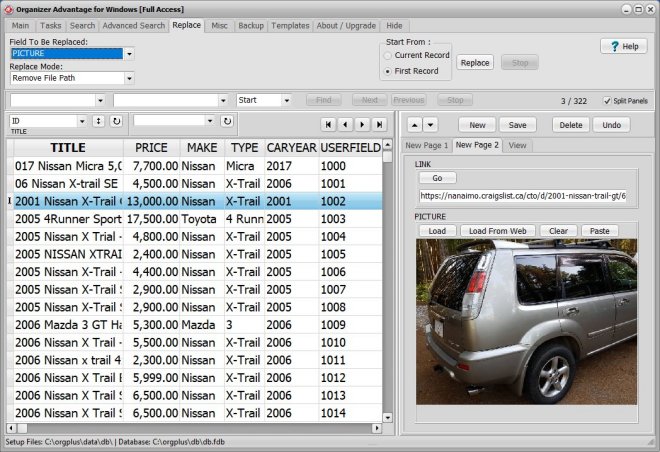
Remove File Path: it can be useful for image, attachment, URL address data fields (for example, when the graphic files are moved to a different directory).
One Field With Another
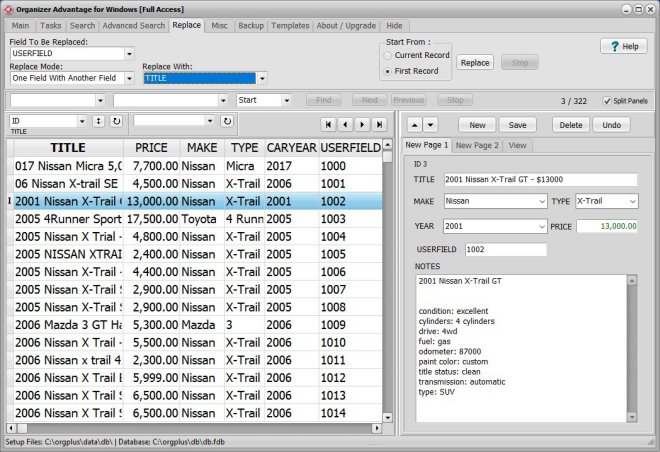
Replace One Field With Another Field : select this mode if you want to replace the content of one field with the content of another field. You can replace a Numeric field with a Text field (assuming the text field contains only numbers).
Create Bar Codes
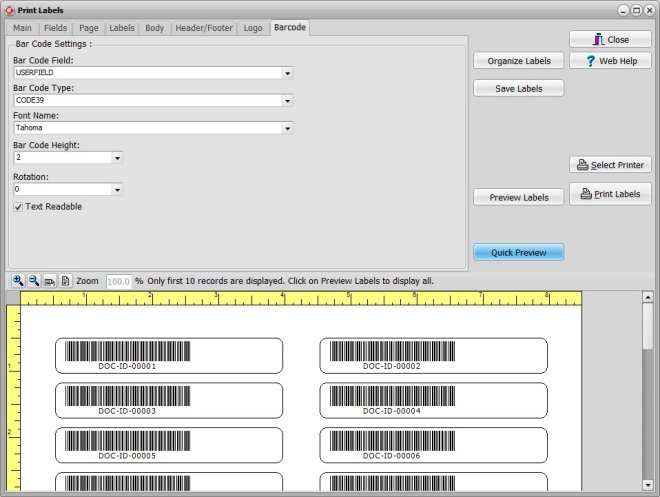
You can create book identification numbers, tag numbers, document numbers that will be represented by text strings with the same length.
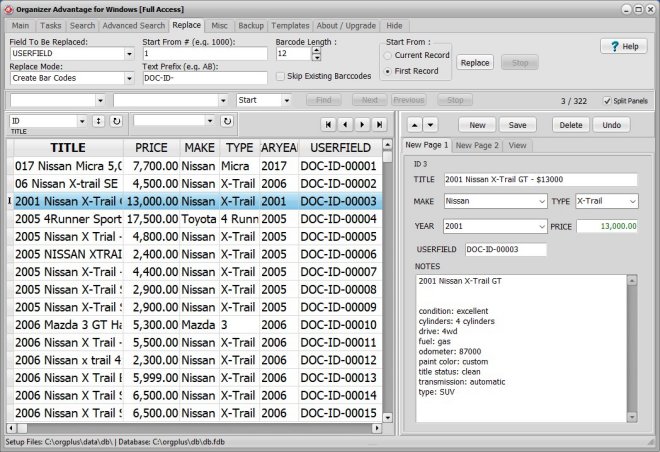
Manual creation of the bar code entries for many records could be time consuming. To speed up this process you can use Replace / Create Bar Codes functions.
Define barcode options:
Start From: enter 1 in the Start From box (or enter your start number).
Scope: select First Record in the Start Replacing From section.
Text Prefix: enter Text Prefix(optional).
Barcode Length: enter the maximum length of your barcode (all barcodes should have the same length, example: 001001, 001002,..,009999 length is 6), (DOC-ID-00001, DOC-ID-00002, ..., length is 12)
First Letter To Upper Case, All Letters To Upper Case, All Letters To Lower Case
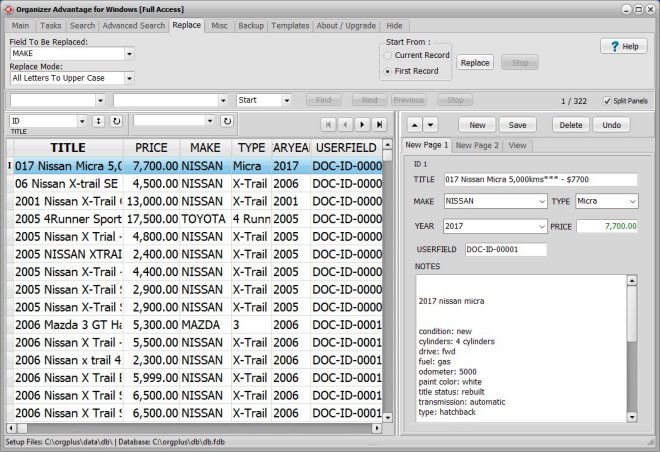
All Letters To UPPER CASE: select this mode if you would like to replace all letters of the selected field to upper case.
Copyright © 2026 · All Rights Reserved · PrimaSoft PC