
Organizer Advantage is powerful yet easy to use database manager for Windows.
Advantage Designer lets you modify our solutions or easily create new databases.
Take control of your data with our simple or buinsess database software solutions.
| Organizer Advantage HowTo/Help | Designer HowTo/Help |
Advantage Help > Templates > How to delete database?
easy-to-use database manager and database designer for Windows
- Organizer Advantage
- Getting Started Videos
- Main Window
- Tabbed Toolbars
- Add Data
- No Limits
- Reports
- Labels
- Search, Replace
- HTML Reports
- HTML Wizard
- Import, Export
- Free Data Setup
- Backup, Restore
- Options
- Statistics, Views
- Solutions
- Templates
- Commands
- Download Template
- Install Template
- Review Templates
- Copy Table
- Delete Table
> Delete Database
- How To .. - Add-Ons
- Install, Network
- Web Search, Add Data
- Premium
- Upgrade, Update
- Organizer Deluxe, Pro Users
- More
Delete Template Database
This guide explains how to delete template databases from the software.
Use this feature to remove unused or outdated database templates from your Windows PC.
When to use the delete database feature?
New template installs as a new database. After the installation you select the template database, select the table, and evaluate the solution. If you don’t want to use the solution you can delete it.
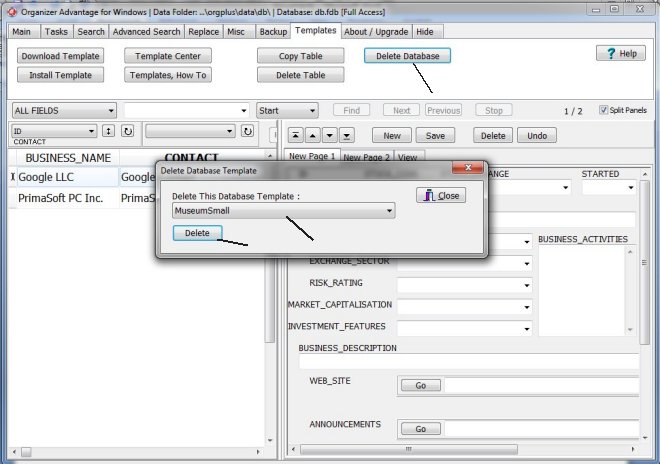
Delete Database
- You cannot delete the database that is currently opened. Open any database that you don’t want to delete.
- On the Templates toolbar click Delete Database.
- Select the database name in the Delete This Database box.
- Click Delete.
- The selected Database is deleted from the list.
Copyright © 2026 · All Rights Reserved · PrimaSoft PC