
Help, how to topics > Track circulations, manage loans > Manage Loans: Common Questions
Question: 1. How can I see who has checked out a particular book?
Answer: You can review active loans in the Manage Loans window. Under the Show area, click "All Loaned Out" to see a list of all outstanding and overdue items. You can sort these results by borrower name, book title, author,
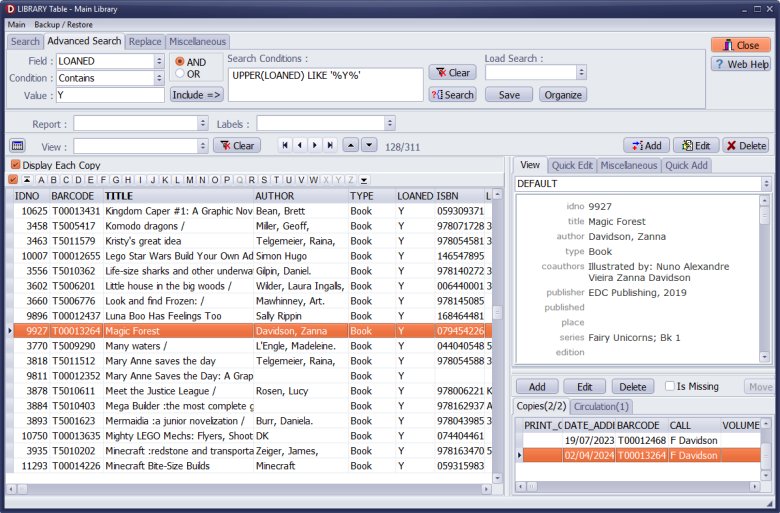
or any other listed data field. If you simply want to check the status of a specific book to see if it is currently loaned out, you can do so directly in the Library table. Enter the book title, barcode number, or author, and click Search.
Question: 2. How do I find a report on how many items were borrowed during a certain timeframe?
Answer: When a new item is added, the system automatically logs the date in the DATE_ADDED field. To check the number of items added or handled during a specific time period, use the "Advanced Search"
feature to set your starting and ending dates. For example, to find items added within a specific window, your search definition box should look like this:
DATE_ADDED > '03/08/2018' and then use the AND
operator to add the second definition: DATE_ADDED < '05/08/2018'.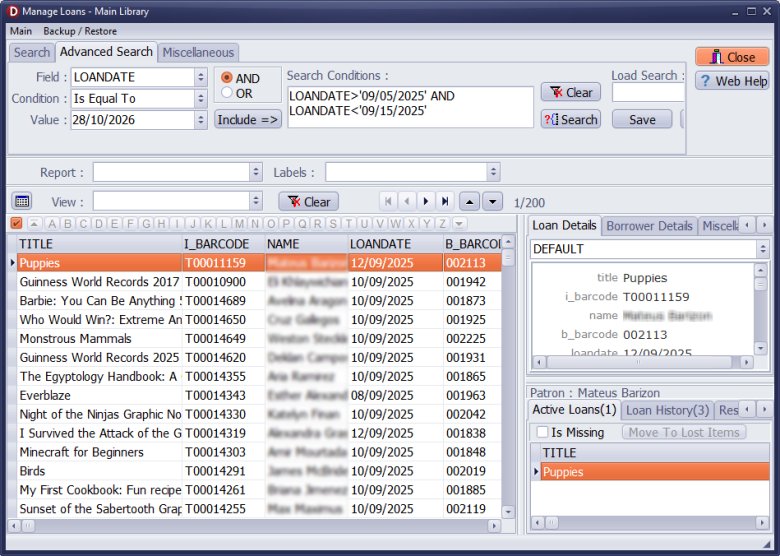
Question: 3. How do I print a report of all books that need to be returned or see which users owe books?
Answer: You can easily generate and print this data from the Manage Loans window. In the Show area, select "Overdue". This will isolate all past-due items, allowing you to define, view, and print a clean report of both the outstanding
books and the users who need to return them.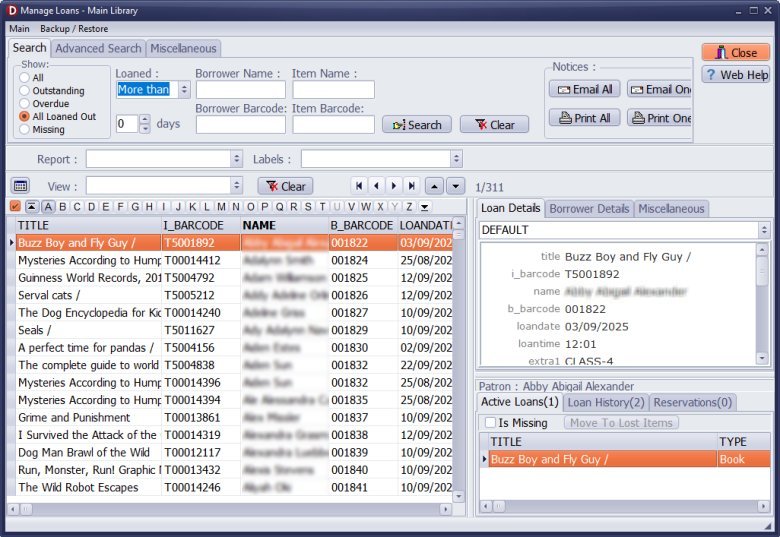
library catalog, LOANED status:
Handy Library Manager 4.5, review new features
Inquiries from Librarians and Libraries
ISBN Book Finder And Cataloging Tool
Library Web Search, review new web search
How to print replacement labels?
Getting started library video lessons
How to include library name on labels
Library, Data Entry Form Designer
Edit item or borrower data in the check-in/check-out window?
Link item lost fine with the PRICE data field?
Handy v3.2 supports letter tabs?
How to predefine library email messages?
How to update library data from the web with ISBN?
How to predefine library email messages?
Compilation of questions and answers from library requests will help you to make purchase decision.
How to verify if the item is checked out in the library main catalog window?
How to create a new record using Copy Selected Item?
Special Library, how to manage digital and paper document library?
What is the maximum number of library items?
Library Software for Small Libraries, Windows application
Handy Library Manager
small library software
library tour
library features
try now, download
cloud
library software reviews
Copyright © 2026 · All Rights Reserved · PrimaSoft PC