
.. > Print Labels > How to you use "Print" and "Print Copy" markers? > How to Print Replacement Labels for Library Books ?
-
Print Labels
- barcode labels
- print new items only
- print recently added
- spine labels
- design spine label
- spine labels, samples
- print one spine label
> randomly select, print
> print replacement labels
- index/catalog card
- print from current
- define custom label
- print markers
- print to PDF
- set alignment, PDF files
- new label temlates
- page sizes, A4, Legal
- labels cross referernce
- spine labels, landscape
- library logo on labels
- design member id card, tag
- label suppliers
- spine labels, ready-to-use
- barcode labels, PDF files
- pre-print barcode labels
How to Print Replacement Labels for Library Books?
Over time, the barcodes and spine labels on books can wear, fade, or become damaged, necessitating replacement. In Handy Library Manager, to print replacement labels for several books at once, use the Print Markers feature to select and group them for bulk printing (Method One). Alternatively, you can print a replacement label for each book individually (Method Two). Follow the step-by-step instructions below to refresh your library labels efficiently, ensuring you don’t waste any label sheets.
Method One: Use Print Markers
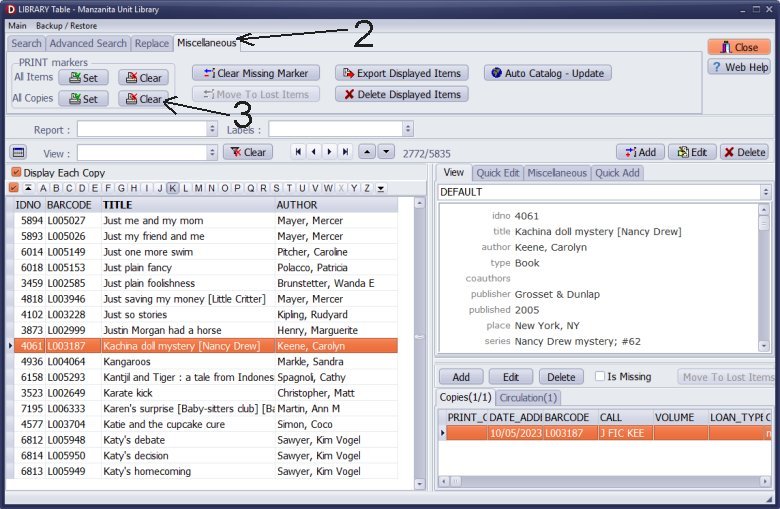
Step 1: Clear Old Markers
- Open the main library catalog window.
- Click on the Miscellaneous tab at the top of the screen.
- In both the "All Items" and "All Copies" sections, click "Clear" to remove any old markings.
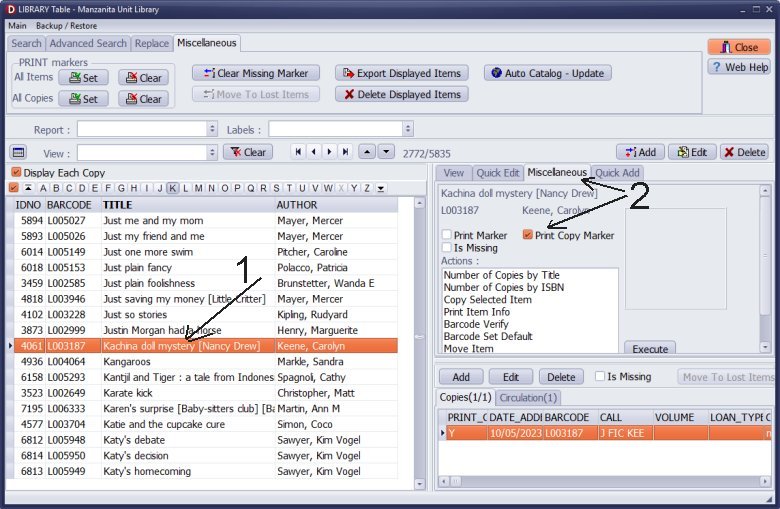
Step 2: Mark the Books Needing Replacement Labels
- Locate the first book that requires a replacement label in your main grid, or use the search feature.
- Select the book, navigate to the Miscellaneous tab on the right, and check the Print Copy Marker box.
- Find the next book, select it, and check its Print Copy Marker box.
- Repeat this process until all books needing replacement labels are marked.
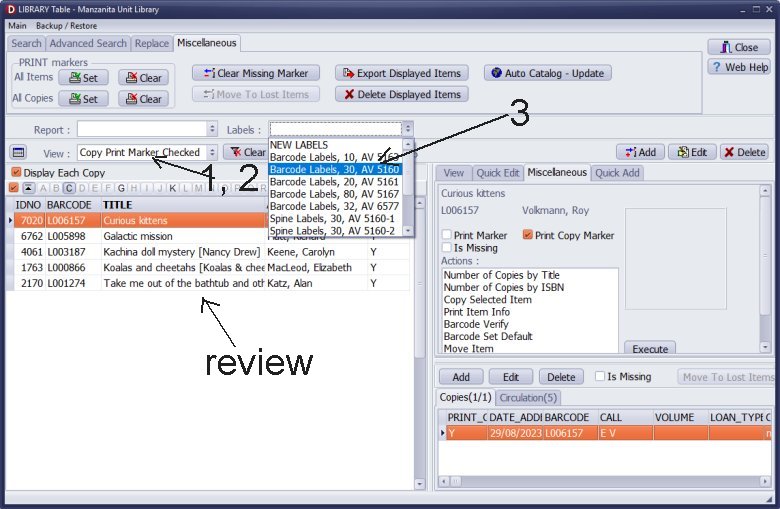
Step 3: Filter the Grid
- Locate the View drop-down box directly above your book grid.
- Change the selection to Copy Print Marker Checked. This will hide everything else and display only your marked books.
- Click Labels and choose your preferred label template.
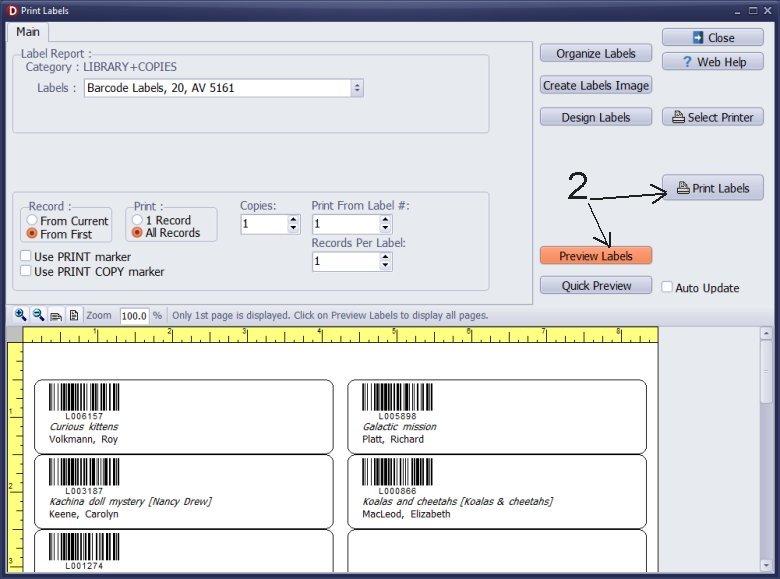
Step 4: Print
- In the print window, ensure the print range includes all the selected records currently displayed on your screen.
- Click Preview Labels and then proceed to print.
Method Two: Print Label for the Selected Item
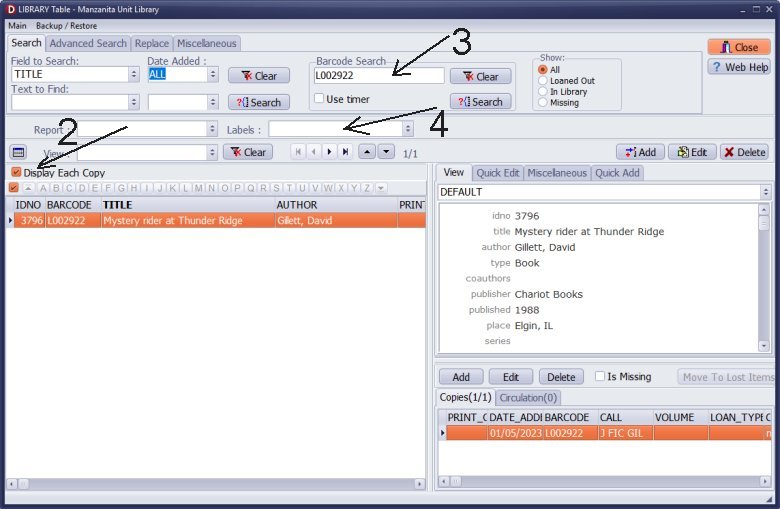
Step 1: Select Item
- Open the Library Main Catalog.
- Turn on Display Each Copy.
- For each book that needs a replacement label scan or type the book's barcode and click Search.
- In the Labels box, select your barcode or spine label template.
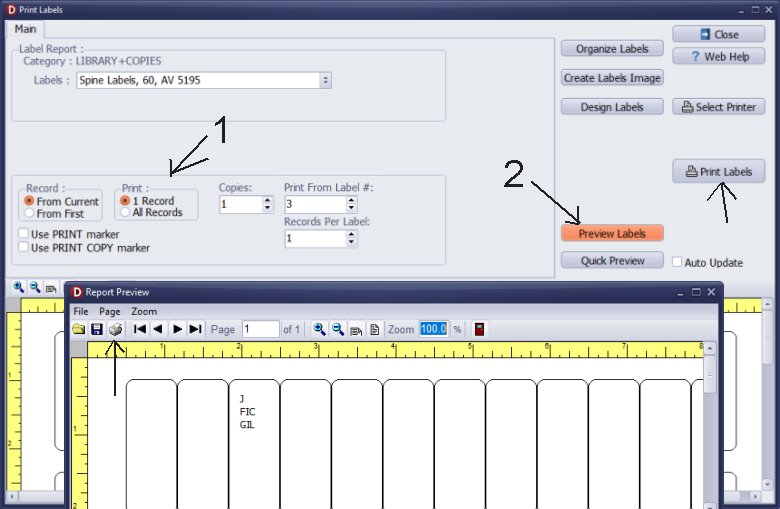
Step 2: Print One Label
- In the Print window set the following:
- Record = From Current
- Print = 1 Record
- Copies = 1 (this prints one label for that item)
- Print From Label = the label position where you want to start printing on the sheet (this helps you skip already-used labels).
- Click Preview Labels, then Print Labels.
- Repeat for each of the other books, adjusting the Print From Label each time to match the next empty spot.
CORRECT THIS PART
Question:
I have several books w/labels that need to be replaced. How can I print a replacement label?
Answer:
Please take a moment to review the help topic above.
Question:
I have around 20 books that need their labels replaced. I believe the instructions you sent print one label at a time. Is there a way to do this for multiple books at once?
Answer:
Please take a moment to review the help topic above.
Handy Library Manager 4.5, review new features
Inquiries from Librarians and Libraries
ISBN Book Finder And Cataloging Tool
Library Web Search, review new web search
How to print replacement labels?
Getting started library video lessons
How to include library name on labels
Library, Data Entry Form Designer
Edit item or borrower data in the check-in/check-out window?
Link item lost fine with the PRICE data field?
Handy v3.2 supports letter tabs?
How to predefine library email messages?
How to update library data from the web with ISBN?
How to predefine library email messages?
Compilation of questions and answers from library requests will help you to make purchase decision.
How to verify if the item is checked out in the library main catalog window?
How to create a new record using Copy Selected Item?
Special Library, how to manage digital and paper document library?
What is the maximum number of library items?
Library Software for Small Libraries, Windows application
Handy Library Manager
small library software
library tour
library features
try now, download
cloud
library software reviews
Copyright © 2026 · All Rights Reserved · PrimaSoft PC