
Help, how to topics > Auto-catalogue, Import > ISBN Book Finder & Cataloging Tool
-
Auto-Catalog, Import
- isbn catalging
- isbn catalging, update
- web search options
- importing, copy/paste
- importing
- marc import
- move items
- move status
- things to know, importing
- free import
- export data
- transfer library data
- search book title or author
- search LofC, Amazon
- search British Library
- import from Goodreads
- web book search, analysis
- web search scripts, update
- validate ISBN numbers
- script functions
> ISBN book finder and cataloging tool
ISBN Book Finder And Cataloging Tool For Handy Library Manager
The ISBN Book Finder & Cataloging Tool for Handy Library Manager is a user-friendly web application designed to simplify the process of cataloging books. Users can enter up to five ISBNs at a time, and the tool automatically retrieves detailed information about each book from the web. The results are displayed in a clean and easy-to-review table, allowing users to verify the accuracy of the information before saving. Once confirmed, the data can be exported to a text file formatted for seamless import into Handy Library Manager, allowing for faster and more efficient updates to library collections.
ISBN Book Finder And Cataloging Tool
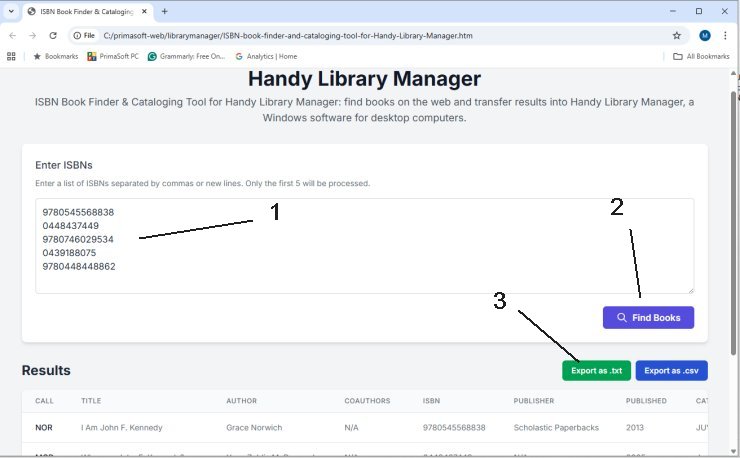
Open ISBN Book Finder And Cataloging Tool
Enter your list of ISBNs. Click on Find Books. The results will be displayed in a table for your review. Click Export As TXT to save the results in a text file.
The first line of the text file includes the field names used by the Handy Library Manager, which will define the mapping for data transfer. The text uses tab characters as field separators. This text file is in a ready-to-use format that allows for easy transfer into the Handy Library Manager application.
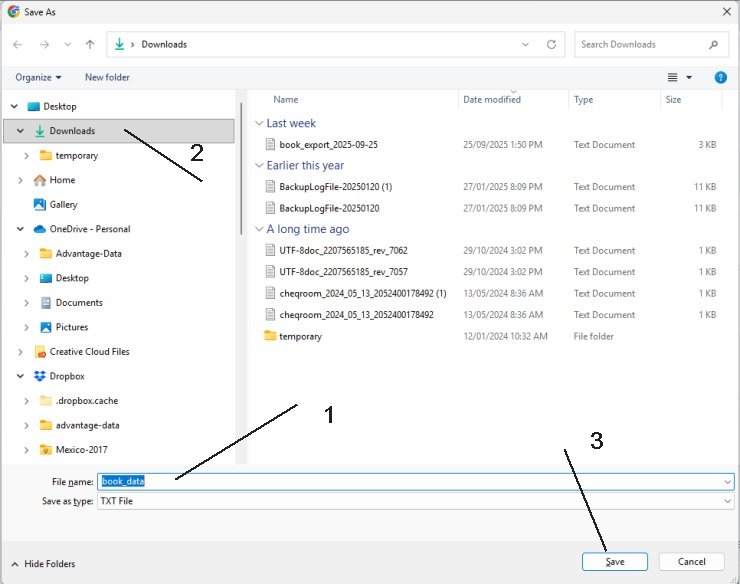
The ISBN search results will be saved in the Downloads folder, but you can choose a different folder if you prefer. Remember the folder name you select.
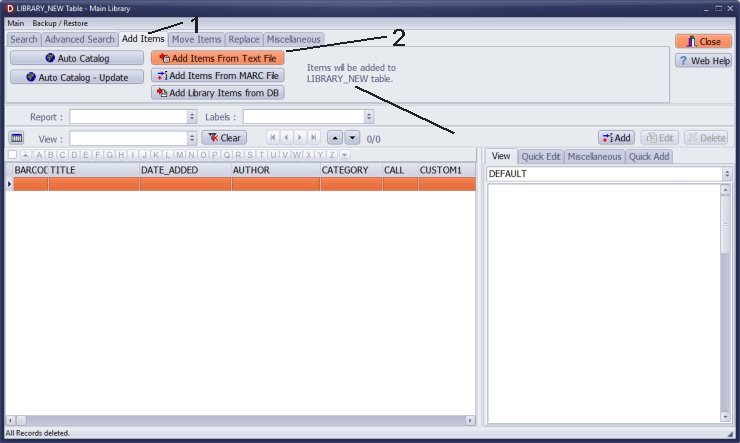
Next, start the Handy Library Manager. Open the Library New table, which allows you to add library items in batches.
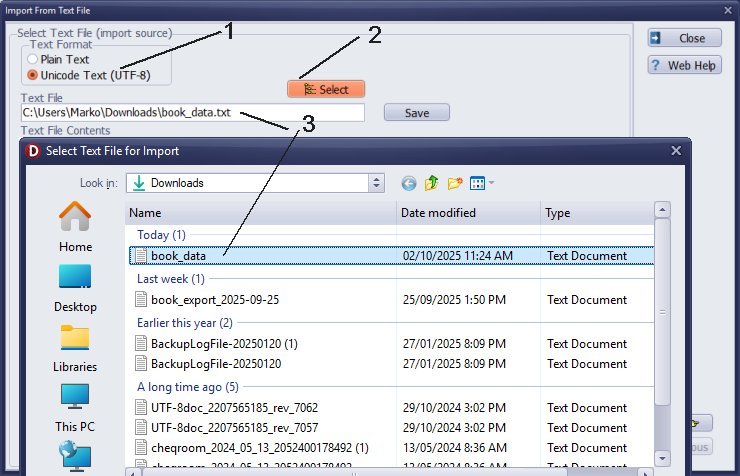
Select the Unicode Text file format, then choose the text file that contains your book search results.
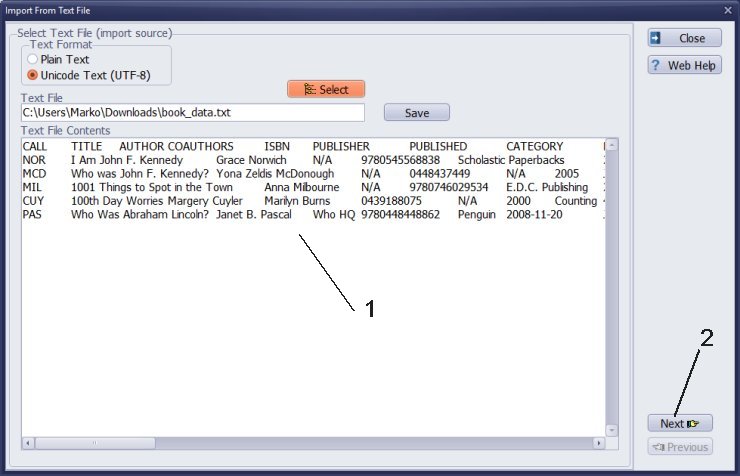
Once you select the text file, its contents will appear in the Text File Contents box for your review. The first line will include the field names, defining the data transfer mapping.
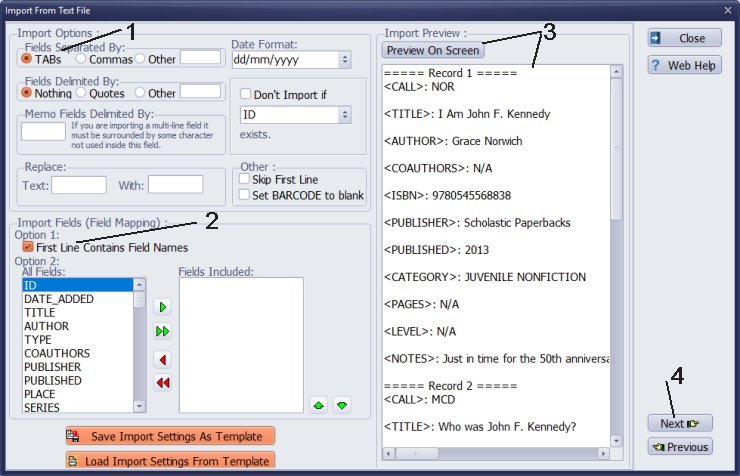
Select the import features and review the first three records.
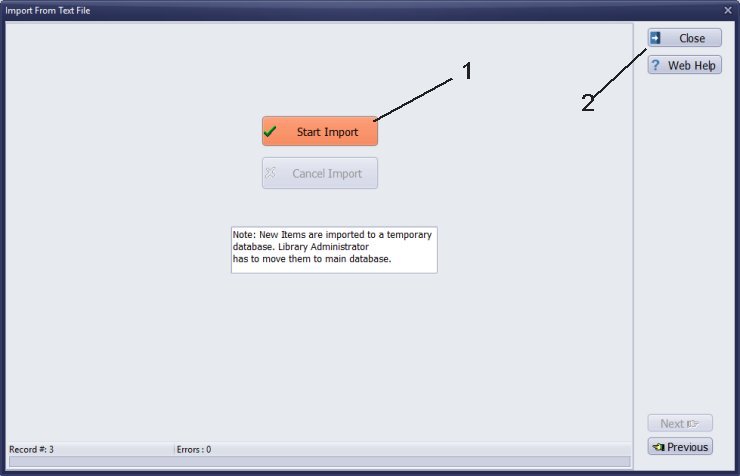
Click Start Import to import data from the text file.
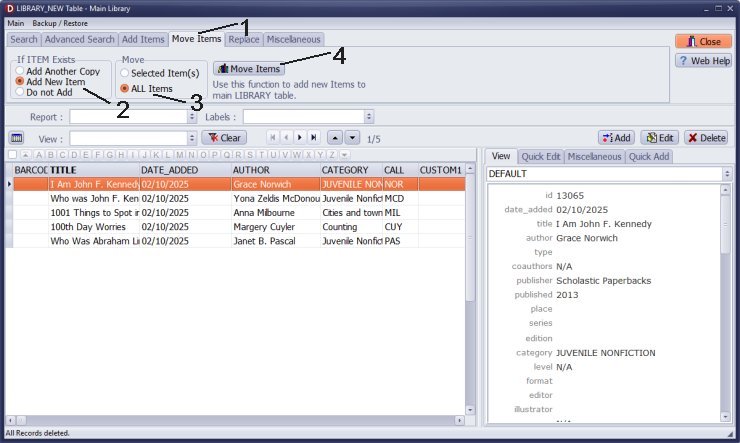
Once the import is complete, review the listings in the temporary Library New table. After verifying that all your listings are correct and entering any missing data, you can transfer the information to the main library catalog. If you do not enter barcode numbers, the software will automatically generate them for you.
In the library's main catalog, you can print barcode and spine labels for recently added items.
Handy Library Manager 4.5, review new features
Inquiries from Librarians and Libraries
ISBN Book Finder And Cataloging Tool
Library Web Search, review new web search
How to print replacement labels?
Getting started library video lessons
How to include library name on labels
Library, Data Entry Form Designer
Edit item or borrower data in the check-in/check-out window?
Link item lost fine with the PRICE data field?
Handy v3.2 supports letter tabs?
How to predefine library email messages?
How to update library data from the web with ISBN?
How to predefine library email messages?
Compilation of questions and answers from library requests will help you to make purchase decision.
How to verify if the item is checked out in the library main catalog window?
How to create a new record using Copy Selected Item?
Special Library, how to manage digital and paper document library?
What is the maximum number of library items?
Library Software for Small Libraries, Windows application
Handy Library Manager
small library software
library tour
library features
try now, download
cloud
library software reviews
Copyright © 2026 · All Rights Reserved · PrimaSoft PC