
Help, how to topics > Library items > Library main catalog > Understanding Item and Copy View Modes
-
Library Items
- main catalog
> item, copy view modes
- new items table
- old/lost items table
- item fields, things to know
- sorting
- library grid
- search, advanced search
- barcode search, print label
- letter bar
- items catalogued today
- advanced search, sql
- searching, replacing
- search, sql commands
- view book, view tab
- maximum number
- delete library item
- missing/lost items (New)
- lost, missing items
- library data cleanup
Library Catalog Views: Understanding Item and Copy View Modes
The Library Catalog window provides two distinct views. The first, "Items View Mode", allows access only to the main item data. The second, "Copy View Mode", provides access to both main item data and item copy details.
In Items View Mode, you can:
- Verify the number of unique book or item titles in the library
- Define reports using only main title data fields
- Use simplified report and label features that include only main data fields
In Copy View Mode, you can:
- Verify the total number of books or items in the library, including all copies of each title
- Define reports or labels that include both main title data and copy-specific data (such as barcode, call number, etc.)
- Use report and label features with access to all available data fields
Item data fields include: TITLE, AUTHOR, CO-AUTHORS, PUBLISHER, YEAR PUBLISHED, CATEGORY, SUBJECT, and more.
Copy data fields include: BARCODE, CALL NUMBER, etc.
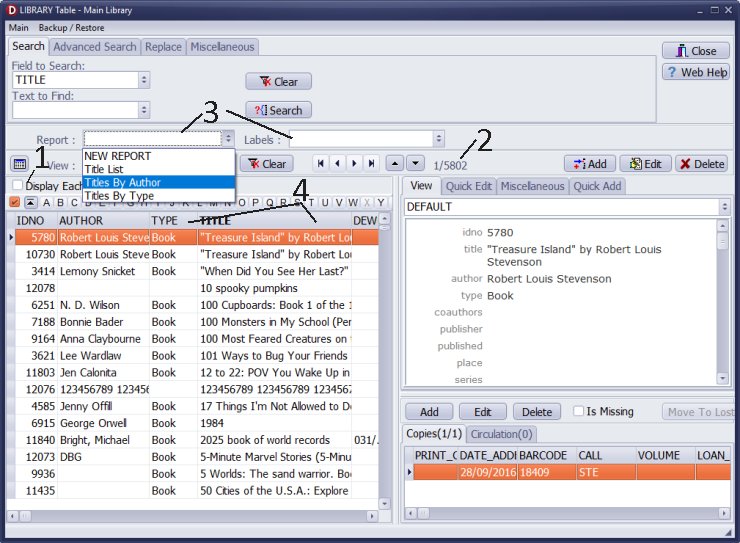
Items View Mode
- With "Display Each Copy" unchecked, you are in "Items View Mode" (1).
- The displayed number indicates the total of unique titles in your library (2).
- For example, there are 5,802 (2) unique titles or items in the library.
- In this mode, reports and labels (3) are limited to main item data fields and do not include copy-specific details.
- The grid (4) displays only the main book or item data fields.
- The search, print report, and print label features access only the main book or item data fields.
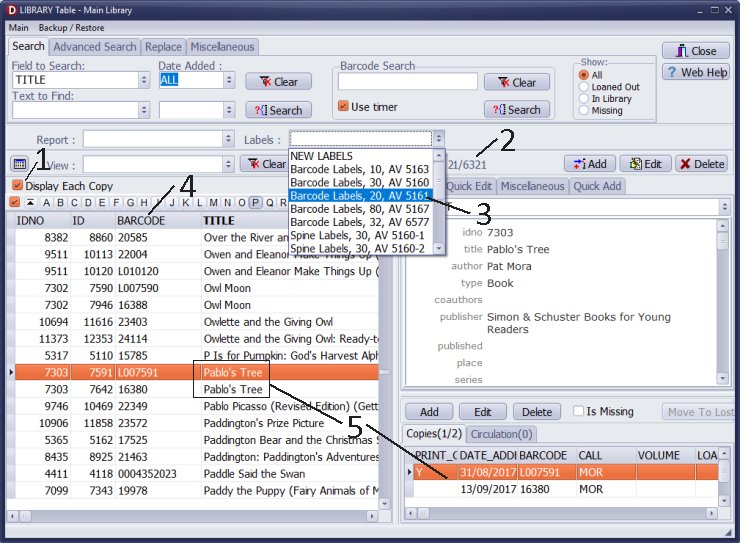
Copies View Mode
- With "Display Each Copy" checked, you are in "Copy View Mode" (1).
- The displayed number represents the total number of books or items (2) in the library, including all copies of each title.
- For example, there are 6,321 (2) books or items in the library.
- Spine and barcode labels now include copy-specific data fields such as barcode and call number. In this mode, you have access to all predefined labels that utilize copy data fields (3).
- The grid (4) allows you to display all available data fields, including the BARCODE column.
- For example, this book has two copies (5) in the collection.
Question:
Why don't I have access to label templates?
Answer:
Access to label templates depends on the current view mode of the Library Catalog.
If you are in Items View Mode (with "Display Each Copy" unchecked), only main item
data fields are available, and copy-specific label templates may be hidden.
Switch to Copy View Mode (by checking "Display Each Copy") to access all predefined label templates, including those that use copy-specific fields.
Question:
How can I define a new spine label if the print label window does not include certain data fields?
Answer:
If the desired data fields are missing in the print label window, first ensure you are in Copy View Mode,
as this mode provides access to all data fields - including copy-specific ones like barcode and call number.
Question:
How can I create a report of library items that includes the book barcode value if the barcode field is not listed in the selection box?
Answer:
To include the barcode in your report, make sure you are using Copy View Mode.
In Items View Mode, only main item fields are available, and barcode is a copy-specific field.
Question:
Why can't I find the call number field when generating labels or reports?
Answer:
The call number is a copy-specific data field. If you are working in Items View Mode,
it will not appear. Switch to Copy View Mode to enable access to all data fields,
including call number, when generating labels or reports.
Question:
Is it possible to customize label templates to include additional data fields?
Answer:
Yes, our library management systems allow customization of label templates.
Handy Library Manager 4.5, review new features
Inquiries from Librarians and Libraries
ISBN Book Finder And Cataloging Tool
Library Web Search, review new web search
How to print replacement labels?
Getting started library video lessons
How to include library name on labels
Library, Data Entry Form Designer
Edit item or borrower data in the check-in/check-out window?
Link item lost fine with the PRICE data field?
Handy v3.2 supports letter tabs?
How to predefine library email messages?
How to update library data from the web with ISBN?
How to predefine library email messages?
Compilation of questions and answers from library requests will help you to make purchase decision.
How to verify if the item is checked out in the library main catalog window?
How to create a new record using Copy Selected Item?
Special Library, how to manage digital and paper document library?
What is the maximum number of library items?
Library Software for Small Libraries, Windows application
Handy Library Manager
small library software
library tour
library features
try now, download
cloud
library software reviews
Copyright © 2026 · All Rights Reserved · PrimaSoft PC