
Help, how to topics > Library items > Delete an Entire Category of Discarded Books
-
Library Items
- main catalog
- new items table
- old/lost items table
- item fields, things to know
- sorting
- library grid
- search, advanced search
- barcode search, print label
- letter bar
- items catalogued today
- advanced search, sql
- searching, replacing
- search, sql commands
- view book, view tab
- maximum number
> delete library item
-> delete entire category
- missing/lost items (New)
- lost, missing items
- library data cleanup
- library common questions
How to Delete an Entire Category of Discarded Books?
You can delete a group of books from the library catalog. Before proceeding with the deletion, we recommend backing up the library data. If something goes wrong, you can always restore the data.
We suggest reviewing some numbers first. For instance, check the number of books in the obsolete category and the total number of books in the library. After the deletion, the new total should equal he old total minus the number of books from the deleted category.
To delete an entire category of books at once in Handy Library Manager, you must first isolate that category using an advanced search, then use the "Delete All Items" tool.
Important Pre-check: The software will not allow you to delete any books that are currently checked out. You must process check-in transactions for any outstanding books in that category before starting this process.
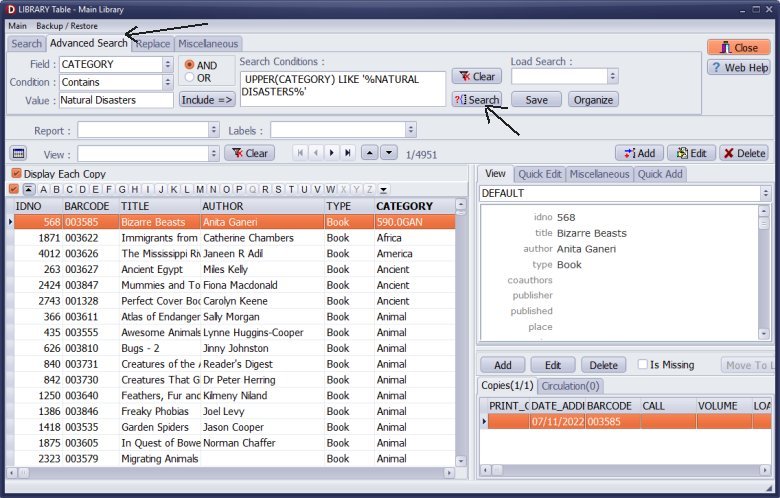
Filter the Catalog by Your Category
- Open the Library Main Catalog database window.
- Click on Advanced Search.
- Set your search criteria:
Field: Select CATEGORY (or whichever field you use to track this group).
Condition: Select is equal to (or contains).
Value: Type or select the exact name of the category you are discarding. - Click Search. Your main catalog grid will now only display the books in that discarded category.
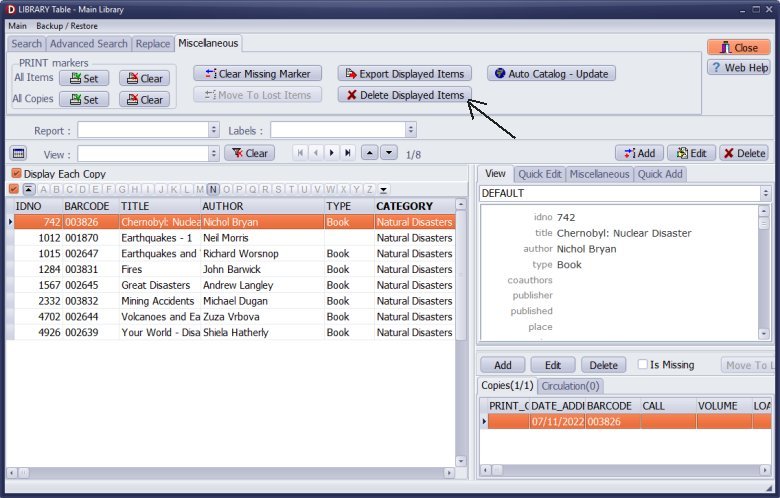
Delete All Displayed Items
- Click on the Miscellaneous tab.
- Verify the list on your screen one last time to make sure no active books are visible.
- Click the Delete Displayed Items button.
- Confirm the warning prompt. The system will delete all the currently displayed records and their past loan histories from the main catalog.
- Click Clear to return the grid to displaying your remaining library collection.
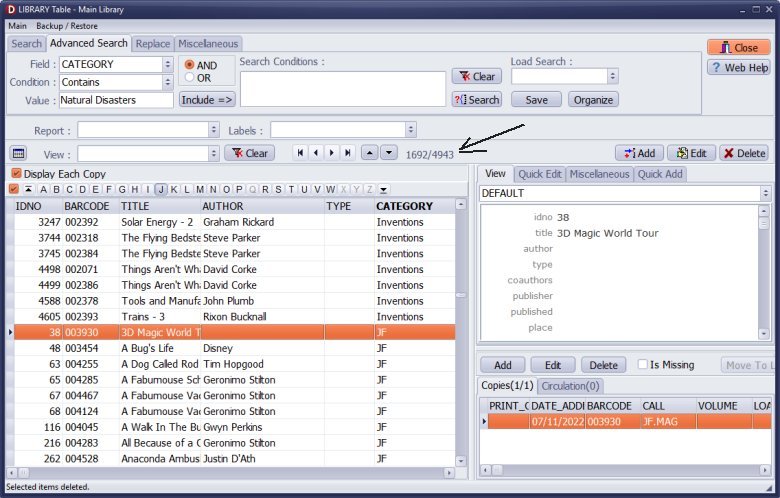
Check the final total number of items displayed in the library catalog window.
After the deletion, the new total should equal the old total minus the number of books from the deleted category.
Old Total: 4951
Category Items: 8
New Total: 4943 (4951-8=4943)
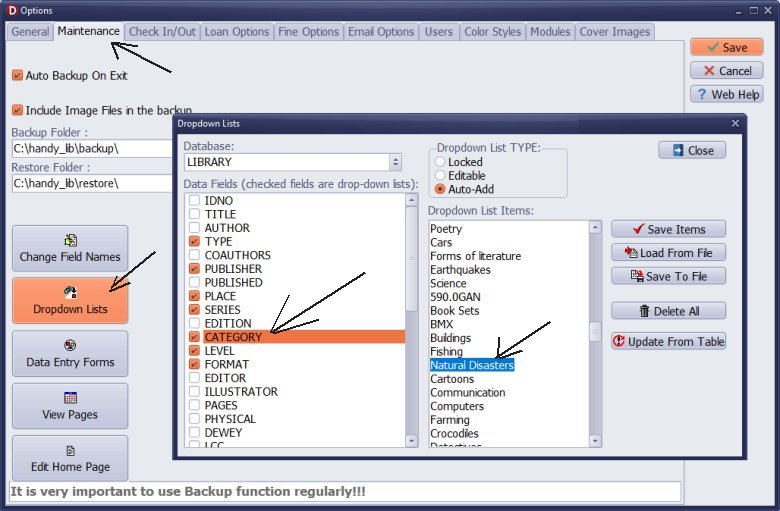
Remove the Category Name from Your Dropdown List (Optional)
If you want to completely remove the old category name so it stops showing up as an option when adding new books, clear it from your dropdown memory:
- Click the CATEGORY to open the list box editor.
- Find the discarded category name in the text box, select it, and hit Delete on your keyboard to clear the line.
- Click Save Items.
Related Question:
Handy Library Manager 4.5, review new features
Inquiries from Librarians and Libraries
ISBN Book Finder And Cataloging Tool
Library Web Search, review new web search
How to print replacement labels?
Getting started library video lessons
How to include library name on labels
Library, Data Entry Form Designer
Edit item or borrower data in the check-in/check-out window?
Link item lost fine with the PRICE data field?
Handy v3.2 supports letter tabs?
How to predefine library email messages?
How to update library data from the web with ISBN?
How to predefine library email messages?
Compilation of questions and answers from library requests will help you to make purchase decision.
How to verify if the item is checked out in the library main catalog window?
How to create a new record using Copy Selected Item?
Special Library, how to manage digital and paper document library?
What is the maximum number of library items?
Library Software for Small Libraries, Windows application
Handy Library Manager
small library software
library tour
library features
try now, download
cloud
library software reviews
Copyright © 2026 · All Rights Reserved · PrimaSoft PC