
Help, how to topics > Print reports > How Track Loan Transactions by Class Grade and Generate Overdue Reports?
-
Print Reports
- book list
- overdue items
> overdue items by class
- predefined reports
- reports, save with view
- reference category report
- last month loans
- biography in subjects
- detailed list by title
- circulation history by item
- print books from one reading level
- print new library items
- print bar codes in a report
- print groups on new pages
- report title options
Track Loan Transactions by Class Grade and Generate Overdue Reports in Handy Library Manager
This topic explains how to set up the system to track loan transactions by class grade and generate reports on overdue items by class.
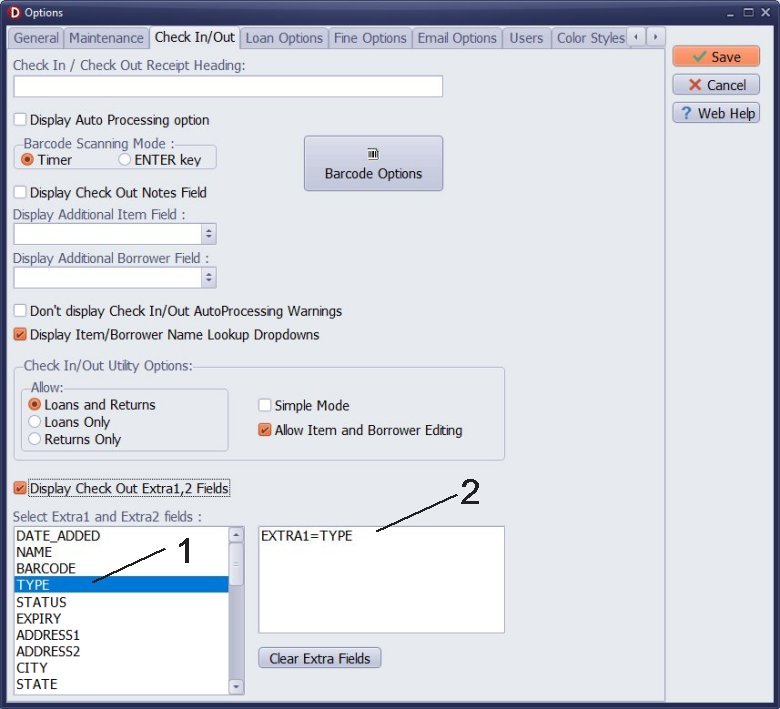
You can save two additional data fields in the loan transactions. In the Borrower table, you can enter the student's grade into the TYPE data field. Later, you can save the value from this field in the LOAN table under the EXTRA1 data field. To do this, open the options window and define the settings. In the "Select Extra1 and Extra2 Fields" section, click on TYPE (1), which will automatically assign the setting (2). Then, click SAVE to save the new options.
Now, every time you process a loan transaction, the value from the student’s TYPE data field will be saved in the EXTRA1 field of the LOAN table.
How to Define and Print a Report of Overdue Items by Class
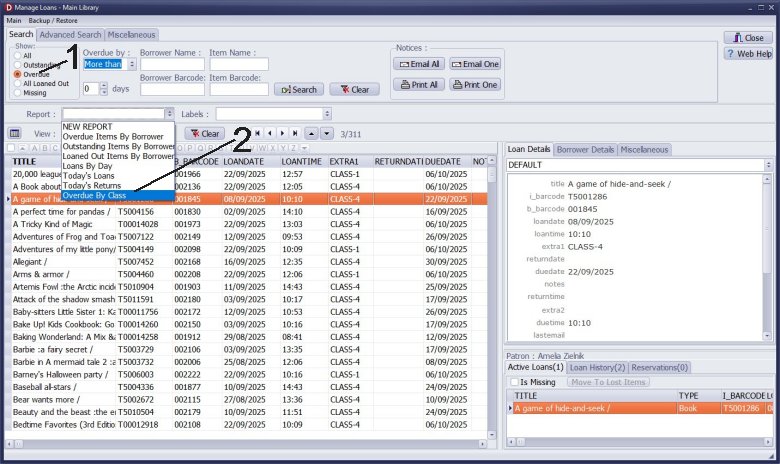
Open the Manage Loans window. In the Show area, click on "Overdue" (1). This action will display only overdue items. Keep in mind that when you generate a report, it will include only the currently displayed items in the Manage Loans window. If you select "All Loaned Out" items, the report will include all loaned items.
There is already a report titled "Overdue By Class" (2). Click on it to load the report.
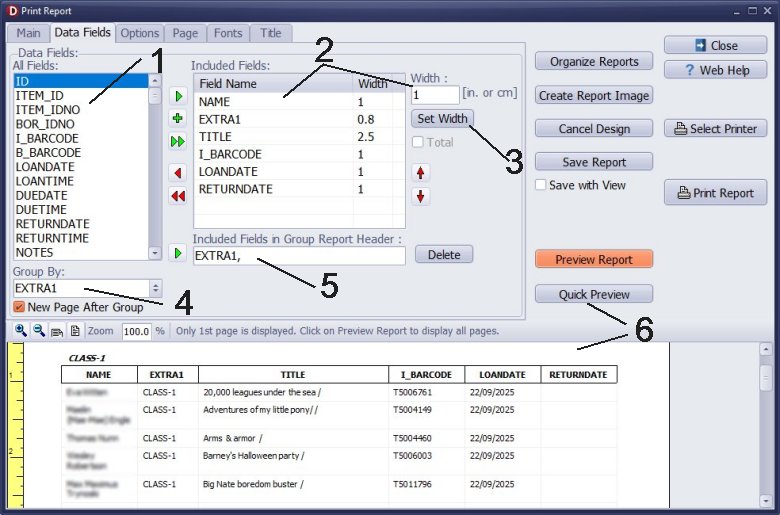
You can define a similar or customized report. Select a field from the "All Fields" box (1). Click on the field you want in the "Included Fields" box and define its new width (2). After entering a new value, be sure to click "Set Width" (3) to save the change. Remember that the total width of all selected fields cannot exceed the page width. In this particular report, the following fields are included: NAME (student name), EXTRA1 (student class), TITLE (book title), I_BARCODE (item barcode), LOANDATE (loan date), and RETURNDATE (return date for verification).
To group overdue items by class, select EXTRA1 in the "Group By" box (4).
To display the class grade in the report header, select EXTRA1 in the "All Fields" box and click the small green arrow icon next to the "Included Fields" box (5).
To ensure that each group starts on a new page, select "New Page After Group."
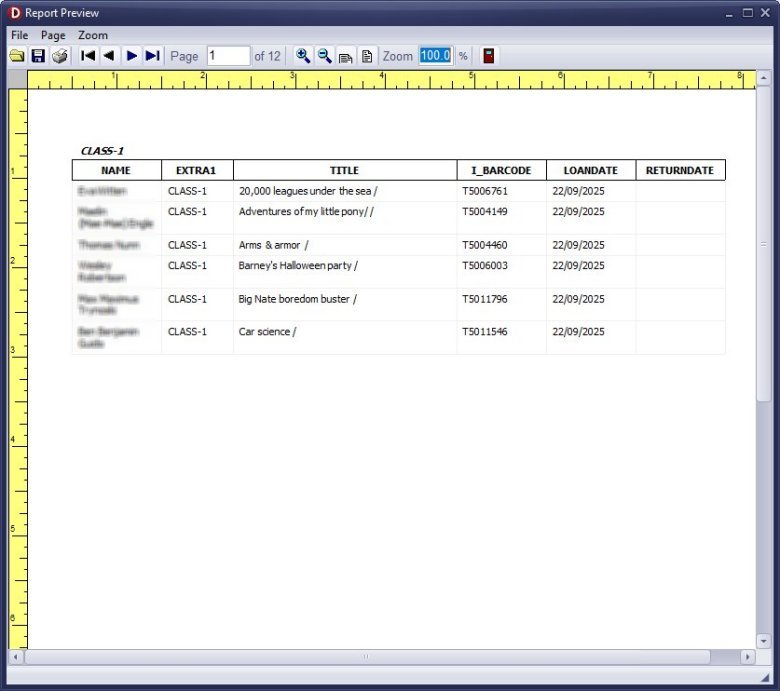
Click "Quick Preview" (6) to see a preview of the report. Once you are satisfied with the report, click "Save Report" to store it for future use.
Important: When you select a report definition from the Report drop-down box, the report will include all items currently displayed in the window. To generate the "Overdue Items By Class" report, first select "Overdue" items in the Show area and then choose the report.
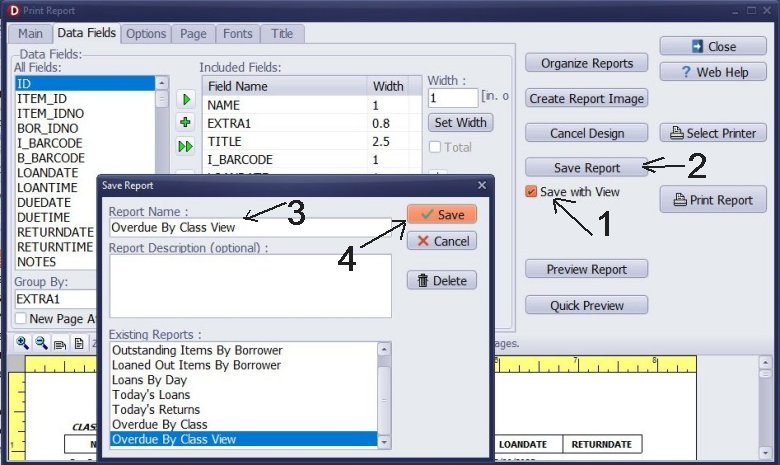
Advanced: Using the Administrator/Report Area with Predefined Selection of Overdue Items
To generate a report without following additional steps, you can do it as follows: When defining the report, select the "Save with View" (1) option. This will ensure that the report retains the SQL definition of the displayed items. The SQL statement will reference today's date. The report will be saved as "Overdue By Class View." (3)
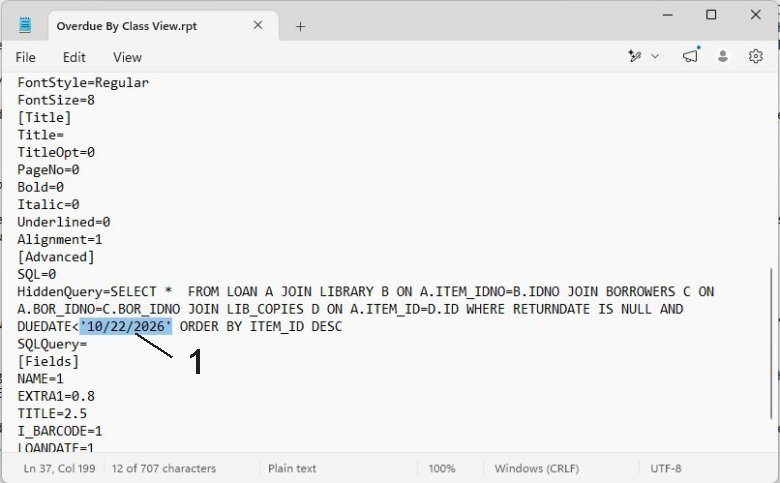
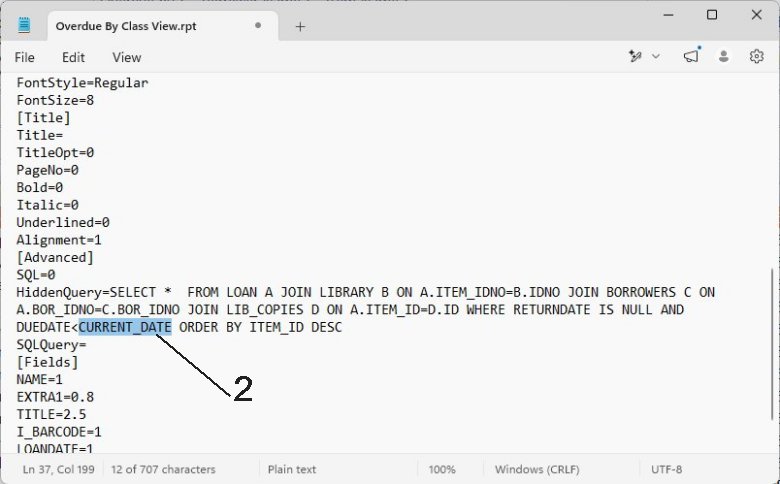
To make the report more generic, you can manually modify the report definition. Open the "Overdue By Class View.RPT" file in a text editor. Locate the SQL query definition, remove the static date value (1), and replace it with 'CURRENT_DATE' (2).
You can find the report definition files in the "C:\handy_lib\data\db\" folder.
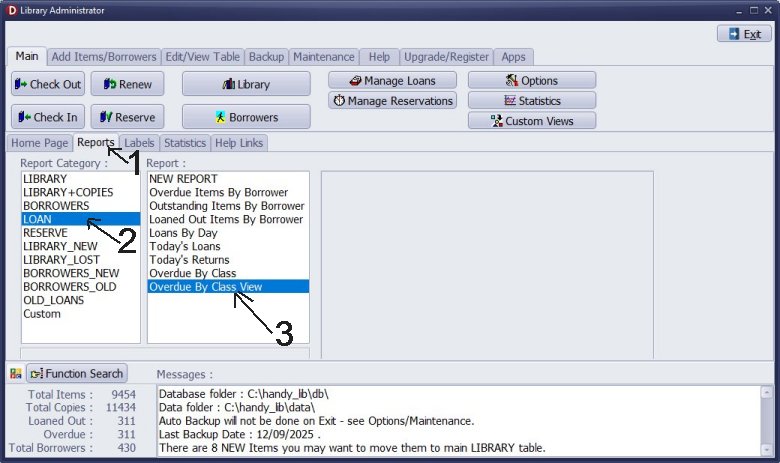
This report, featuring a predefined view for overdue items, can be generated directly from the Administrator Report area (1). To access it, click on "LOAN" (2) and then select "Overdue By Class View" (3). This creates a grouped report by class that displays only overdue items, regardless of when the report is run.
Questions:
Can you possible tell me step by step how to print overdue reports by class?
I would like to be able to see all books borrowed from a certain year group- example 3H or 4A.
I have entered the year group in the TYPE category. How do I do this?
Handy Library Manager 4.5, review new features
Inquiries from Librarians and Libraries
ISBN Book Finder And Cataloging Tool
Library Web Search, review new web search
How to print replacement labels?
Getting started library video lessons
How to include library name on labels
Library, Data Entry Form Designer
Edit item or borrower data in the check-in/check-out window?
Link item lost fine with the PRICE data field?
Handy v3.2 supports letter tabs?
How to predefine library email messages?
How to update library data from the web with ISBN?
How to predefine library email messages?
Compilation of questions and answers from library requests will help you to make purchase decision.
How to verify if the item is checked out in the library main catalog window?
How to create a new record using Copy Selected Item?
Special Library, how to manage digital and paper document library?
What is the maximum number of library items?
Library Software for Small Libraries, Windows application
Handy Library Manager
small library software
library tour
library features
try now, download
cloud
library software reviews
Copyright © 2026 · All Rights Reserved · PrimaSoft PC